Schedules
Schedules let you run assistants on a recurring basis using cron expressions. Use them to automate tasks like daily report generation, periodic data analysis, monitoring, and content workflows.
Overview
- Cron-Based Timing: Define when tasks run using standard 5-field cron expressions
- Agent Integration: Each schedule runs a specific assistant with its configured model, tools, and instructions
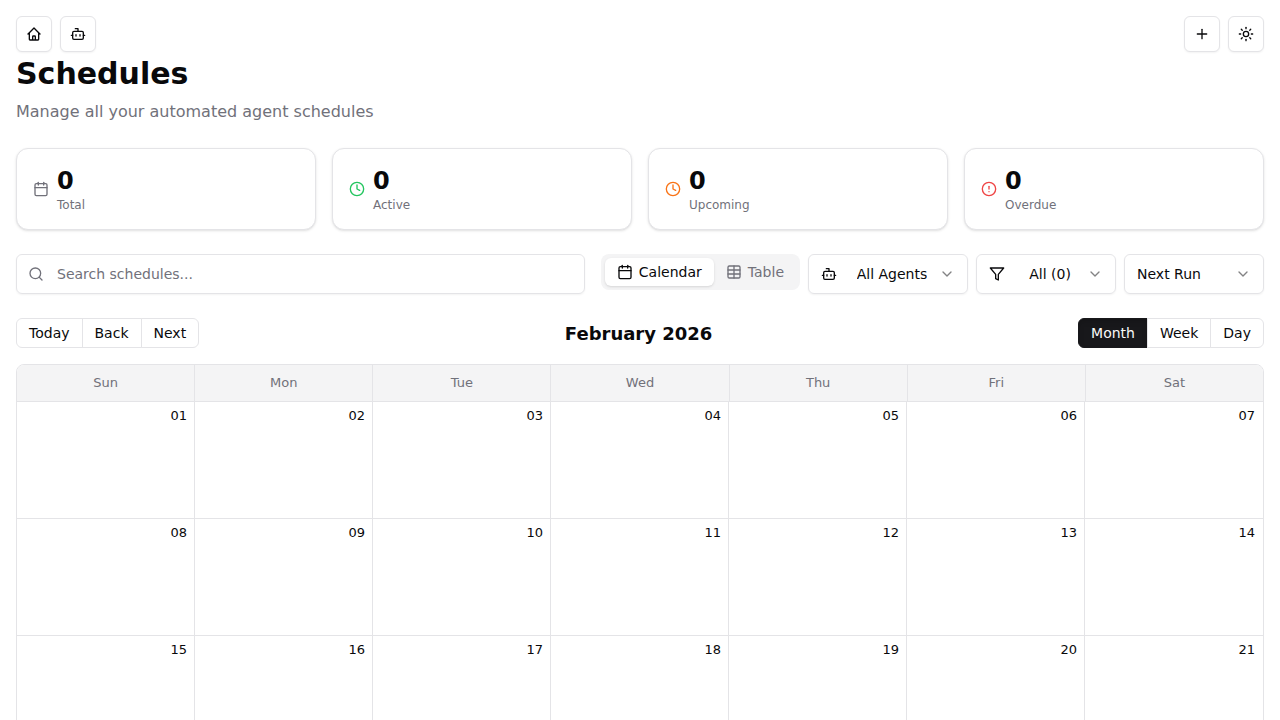
- Multiple Views: View schedules as a calendar, table, or card grid
- Execution History: Track past runs with status, timing, and error details
- Custom or Inherited Config: Override an assistant's model and tools per-schedule, or inherit its defaults
Creating a Schedule
Via Web Interface
- Navigate to Schedules from the sidebar
- Click Create Schedule and select the assistant to run
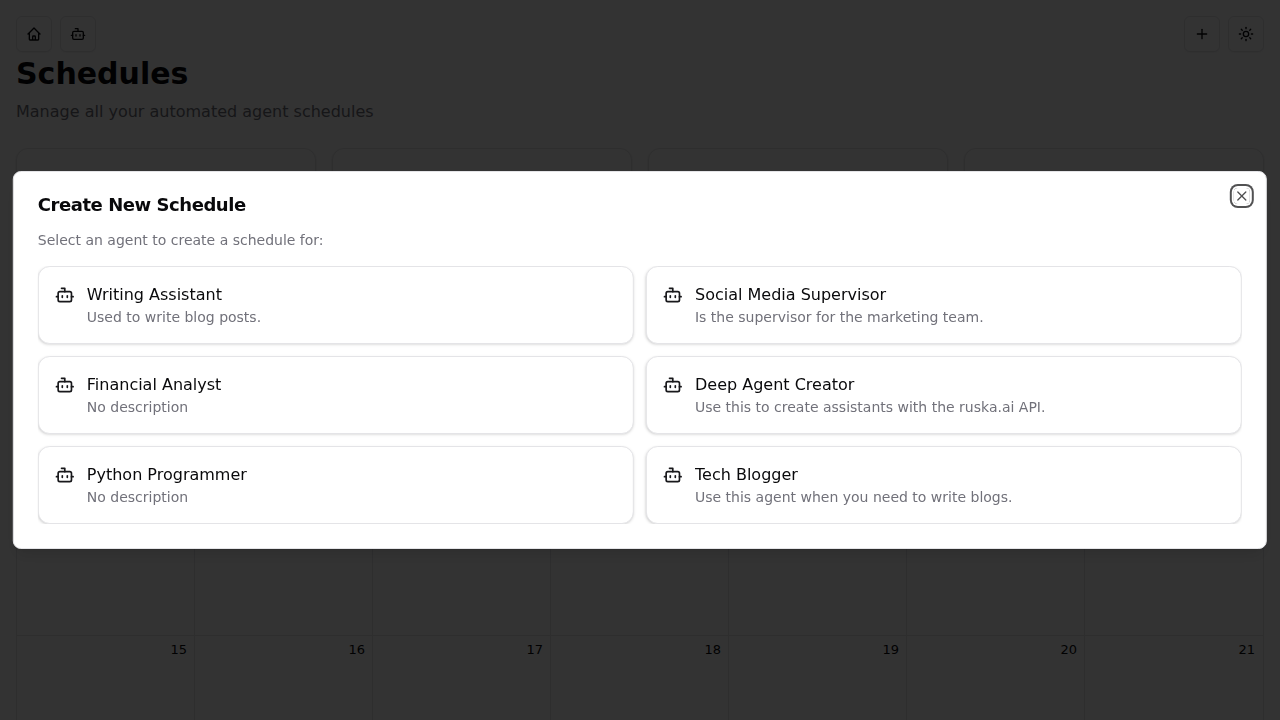
- Fill in the three-step form:
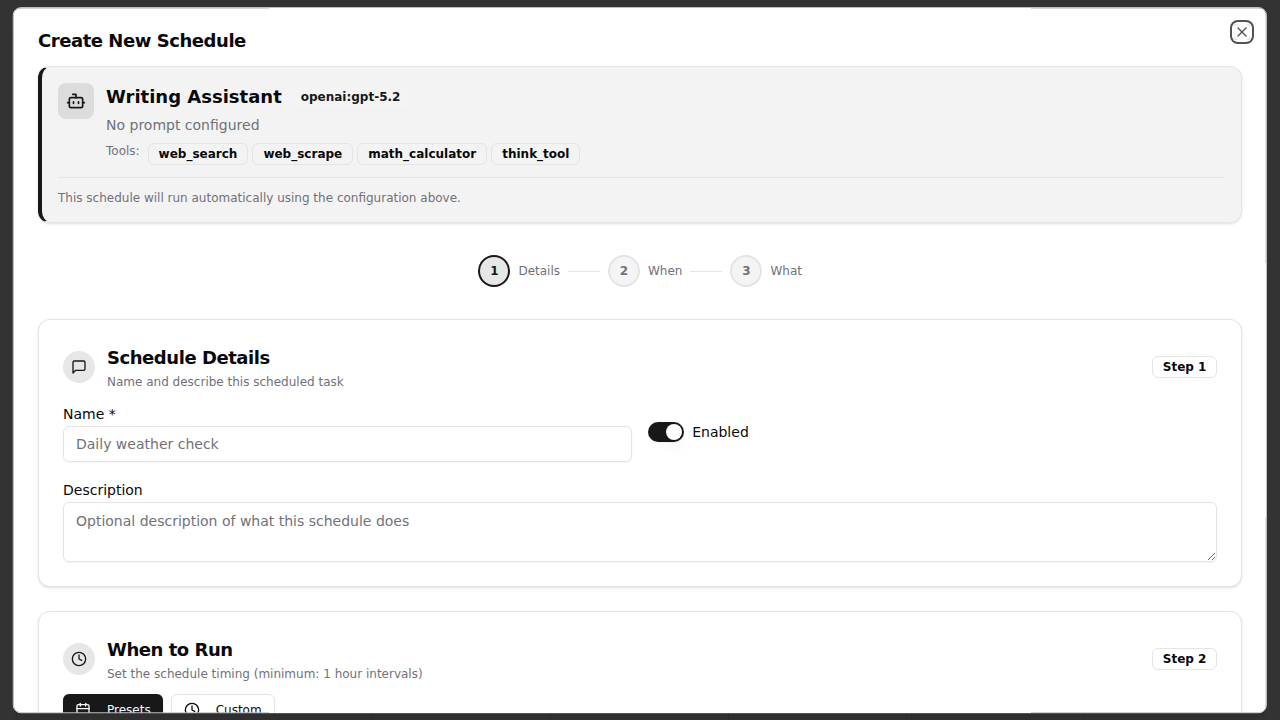
Step 1 — Schedule Details:
- Name (required): A descriptive title for the schedule
- Description (optional): Notes about what this schedule does
- Enabled: Toggle the schedule on or off
Step 2 — When to Run:
- Choose a preset (e.g., "Every hour", "Daily at 9 AM", "Weekly Monday 9 AM") or build a custom cron expression
- The cron builder shows a human-readable preview and the next scheduled runs
- Minimum interval is 1 hour
Step 3 — What to Execute:
- Message (required): The task prompt sent to the assistant (e.g., "Check weather in Dallas and summarize")
- Configuration mode:
- Inherit from Agent: Use the assistant's current model, system prompt, and tools
- Custom Configuration: Override with different model, prompt, or tools for this schedule
- Click Save to create the schedule
Use Inherit from Agent when you want the schedule to automatically pick up any changes to the assistant's configuration. Use Custom when the scheduled task needs different settings than the assistant's defaults.
Via API
curl -X 'POST' \
  'https://chat.ruska.ai/api/schedules' \
  -H 'accept: application/json' \
  -H 'Content-Type: application/json' \
  -H 'Authorization: Bearer <token>' \
  -d '{
  "title": "Daily Weather Check",
  "trigger": {
    "type": "cron",
    "expression": "0 9 * * *"
  },
  "task": {
    "input": {
      "messages": [
        {
          "role": "user",
          "content": "Check the weather in Dallas and give me a summary"
        }
      ]
    },
    "model": "anthropic:claude-sonnet-4-5",
    "tools": ["web_search"],
    "metadata": {
      "agent_id": "your-agent-id",
      "assistant_id": "your-agent-id",
      "enabled": true
    }
  }
}'
Response (201 Created):
{
    "job": {
        "id": "schedule-uuid",
        "next_run_time": "2026-02-21T09:00:00Z"
    }
}
Editing a Schedule
Via Web Interface
- On the Schedules page, find the schedule you want to edit
- Click the menu icon on the schedule card and select Edit
- Update any fields in the three-step form
- Click Save
Via API
curl -X 'PUT' \
  'https://chat.ruska.ai/api/schedules/{job_id}' \
  -H 'Content-Type: application/json' \
  -H 'Authorization: Bearer <token>' \
  -d '{
  "title": "Updated Weather Check",
  "trigger": {
    "type": "cron",
    "expression": "0 */6 * * *"
  }
}'
Deleting a Schedule
Via Web Interface
- Click the menu icon on the schedule card and select Delete
- Confirm deletion in the dialog
Via API
curl -X 'DELETE' \
  'https://chat.ruska.ai/api/schedules/{job_id}' \
  -H 'Authorization: Bearer <token>'
Response: 204 No Content
Listing Schedules
Via API
curl -X 'GET' \
  'https://chat.ruska.ai/api/schedules' \
  -H 'accept: application/json' \
  -H 'Authorization: Bearer <token>'
Response:
{
    "schedules": [
        {
            "id": "schedule-uuid",
            "title": "Daily Weather Check",
            "trigger": {
                "type": "cron",
                "expression": "0 9 * * *"
            },
            "task": { },
            "next_run_time": "2026-02-21T09:00:00Z"
        }
    ]
}
Viewing Execution History
The Schedules page offers three view modes for tracking schedule status and execution history:
- Calendar View: Shows scheduled runs and past executions as calendar events, with color-coded status indicators
- Table View: Lists schedules with columns for name, status, agent, last run, and next run. Toggle between past and future runs
- Card View: Displays schedule cards with status badges, next run time, task summary, model, and agent information
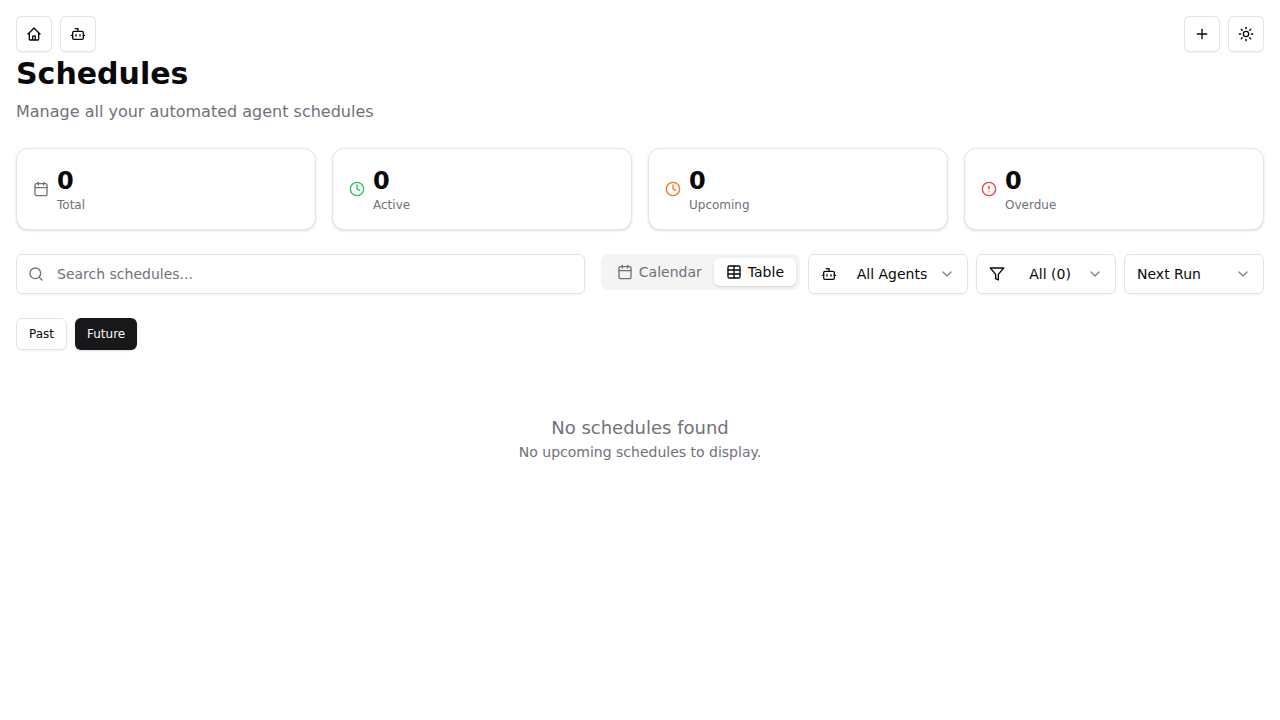
Each execution record includes:
- Status:
scheduled,running,success, orfailure - Scheduled time: When the run was supposed to execute
- Started/Completed times: Actual execution timestamps
- Error message: Details if the run failed
- Thread ID: Link to the conversation thread created by the execution
Status cards at the top of the page show counts for Total, Active (running in the next 24 hours), Upcoming (beyond 24 hours), and Overdue schedules.
Cron Expression Format
Schedules use the standard 5-field cron format:
minute hour day_of_month month day_of_week
| Field | Values | Special Characters |
|---|---|---|
| Minute | 0-59 | *, */N |
| Hour | 0-23 | *, */N |
| Day of Month | 1-31 | * |
| Month | 1-12 | * |
| Day of Week | 0-6 (Sun-Sat) | * |
Common examples:
| Expression | Description |
|---|---|
0 9 * * * | Daily at 9:00 AM |
0 */2 * * * | Every 2 hours |
0 */6 * * * | Every 6 hours |
0 18 * * 1 | Every Monday at 6:00 PM |
0 9 1 * * | First of every month at 9:00 AM |
30 8 * * 1-5 | Weekdays at 8:30 AM |
Schedules must run at least once per hour. The minute field cannot be * or */1, and the hour field cannot be * alone. This prevents excessive execution and ensures reasonable resource usage.
Agent-Scoped Schedules
You can also manage schedules from an assistant's detail page. The agent-specific schedules panel shows only schedules linked to that assistant, with the same create, edit, and delete capabilities.
This is useful when you want to see all automated tasks for a specific agent in one place.
Related Documentation
- Assistants: Create the agents that schedules execute
- Threads: Each schedule execution creates a conversation thread
- Tools: Configure tools available to scheduled runs
Next Steps: Create an assistant and set up your first schedule to automate recurring tasks!