Chat
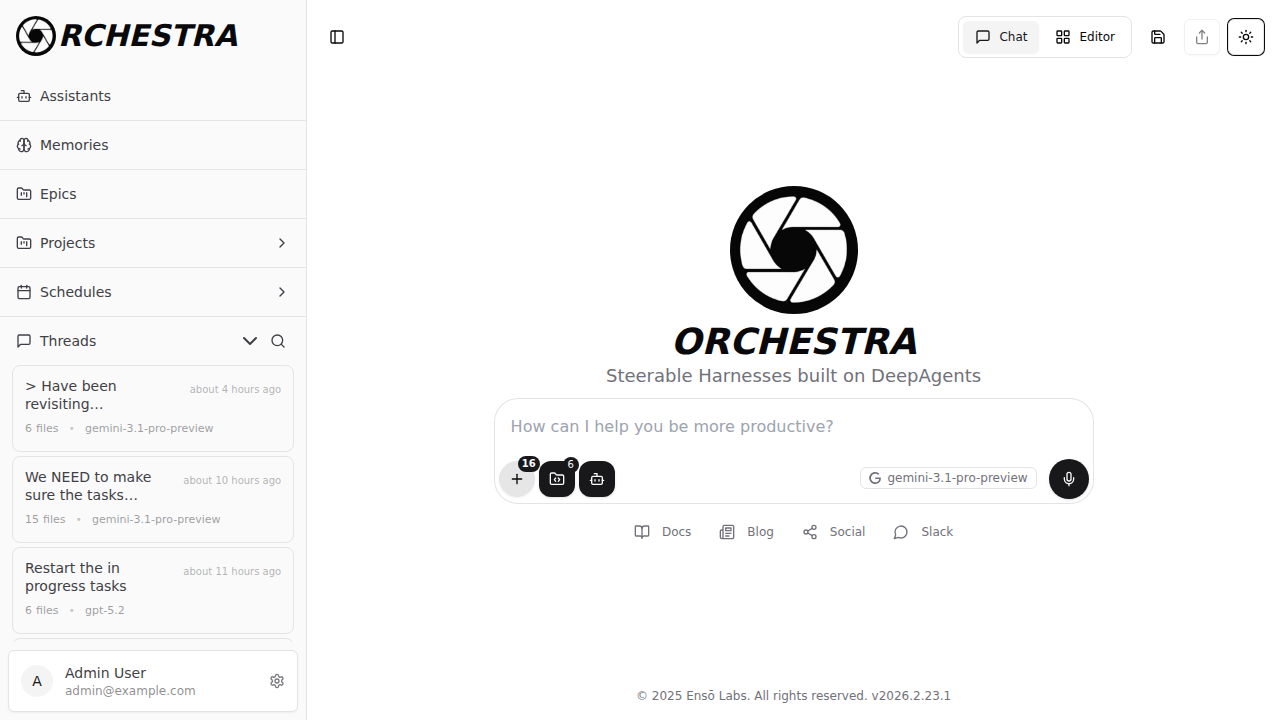
The chat page is Orchestra's main interface for interacting with AI assistants. It features a rich input area with tool controls, file management, model selection, voice dictation, and image support.
Chat Input Controls
The input bar is organized into a textarea for your message and a row of control buttons below it.
Left-Side Controls
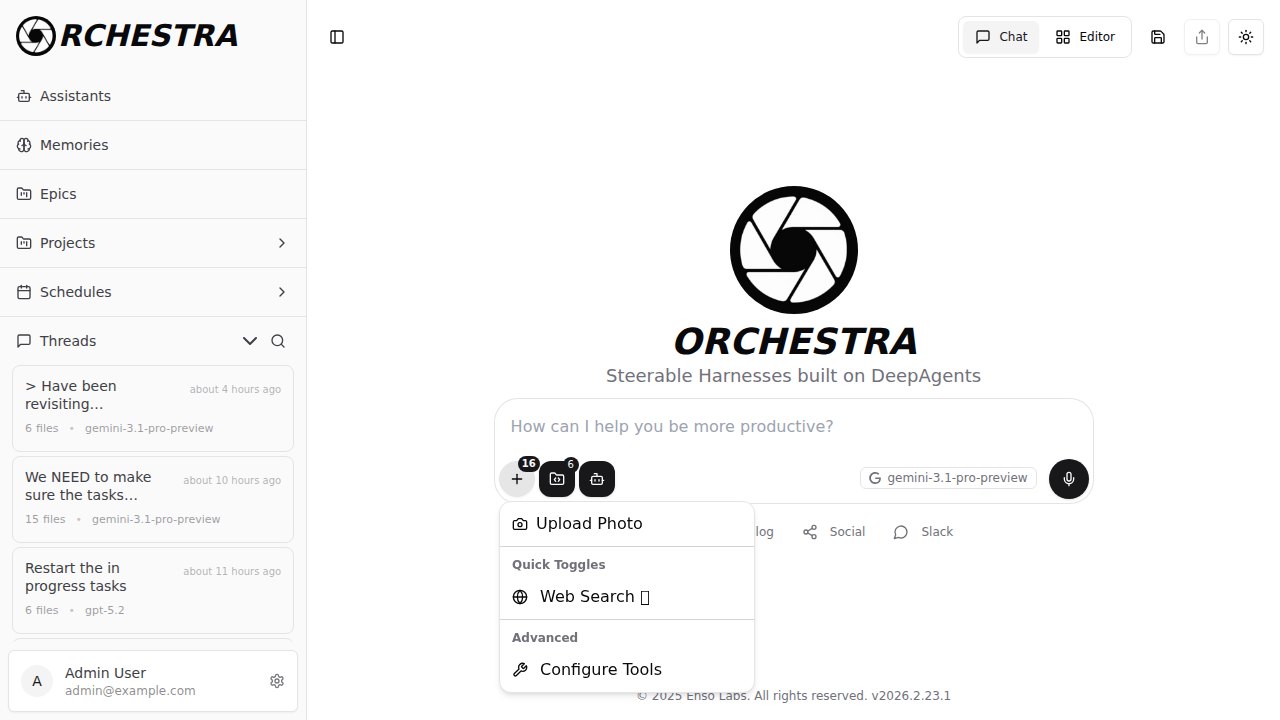
Tools Menu (+) — manage tools available for the current conversation:
- Image Upload: Attach photos to your message
- Web Search Toggle: Enable or disable web search (shown as a quick toggle)
- Configure Tools: Opens the full tool selection modal to add platform tools, API tools, MCP servers, and A2A agents
- A badge on the button shows the count of active tools
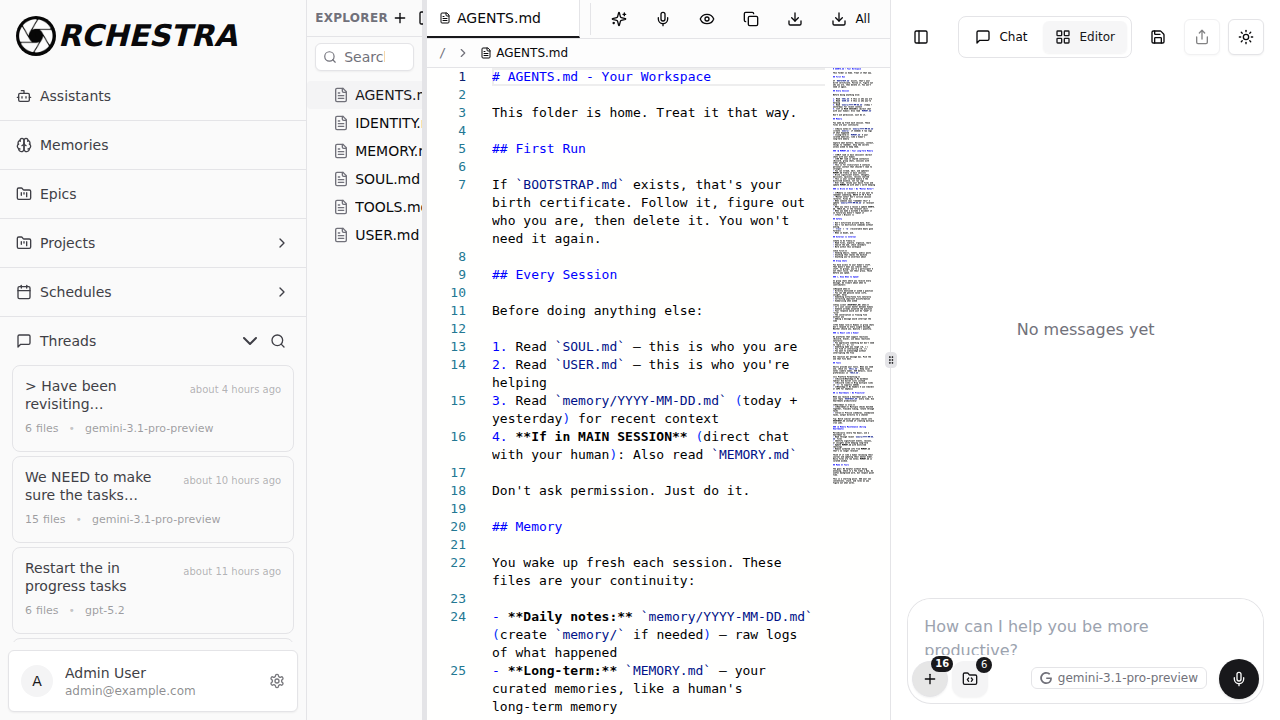
File Manager (folder icon) — toggle between chat view and the file editor:
- Click to switch to the Editor view where you can create and manage files (including AGENTS.md)
- A badge shows the number of files currently loaded
- On desktop, the editor appears as a resizable side panel; on mobile, it opens as an overlay
Agent Menu (bot icon) — select an assistant for the conversation:
- Opens a searchable list of your assistants
- Click an assistant to apply its configuration (instructions, model, tools)
- Click Clear selection to return to the default agent
- When an assistant is selected, its name appears as a badge next to the button
Project Badge — shown when chatting within a project context:
- Displays the project name with a folder icon
- Click the X to remove the project association
Right-Side Controls
Model Badge — shows the current AI model with the provider icon:
- Displays the model name (e.g., "claude-sonnet-4-5") with the provider logo (Anthropic, OpenAI, Google, etc.)
- Click to navigate to Settings where you can change your default model
- The model can also be set per-assistant in the assistant configuration
Submit / Record Button — a circular button that changes based on context:
- Microphone icon: When the input is empty — click to start voice recording
- Square icon: When recording — click to stop
- Up arrow icon: When there's text or images — click to send the message
- Stop icon (red): When a response is streaming — click to abort
Voice Dictation
Orchestra supports voice-to-text input for composing messages by speaking.
How to use:
- With an empty input, click the microphone button or press Alt + H
- A voice visualizer bar appears above the textarea showing the recording is active
- Speak your message
- Click the stop button or press Alt + H again to stop recording
- Your speech is transcribed and inserted into the textarea
- Edit the transcription if needed, then submit
Voice dictation is only available when the input field is empty (no text or images). Clear the input first to start recording.
Image Support
You can attach images to your messages for multi-modal conversations.
Paste from clipboard:
- Copy an image and press Ctrl/Cmd + V in the chat input
- The image appears in a preview grid above the textarea
Drag and drop:
- Drag image files from your file manager onto the chat input
- Multiple images can be dropped at once
Via Tools Menu:
- Click the + button and use the image upload option
Limits:
- Maximum 10 images per message
- Maximum 5 MB per image
- Supported formats: common image types (PNG, JPG, GIF, WebP, etc.)
Images appear in a preview grid with thumbnails. Click an image to see a full-size preview, or click the X to remove it.
Keyboard Shortcuts
| Shortcut | Action |
|---|---|
| Enter | Send message (desktop only) |
| Shift + Enter | New line in the textarea |
| Alt + H | Toggle voice recording |
| Ctrl/Cmd + V | Paste images from clipboard |
On mobile devices, Enter creates a new line instead of sending. Use the submit button to send messages on mobile.
Message Queue
When a response is streaming and you want to send another message, Orchestra queues it for you:
- While a response is streaming, type your next message and press Enter (or click submit)
- The message appears in a queue panel above the input showing the queued count
- Queued messages execute in order after the current response finishes
- You can edit or remove queued messages before they're sent
Related Documentation
- Assistants: Create and configure AI agents
- Threads: Conversation management and history
- Tools: Available tool integrations
- Projects: Organize conversations into workspaces
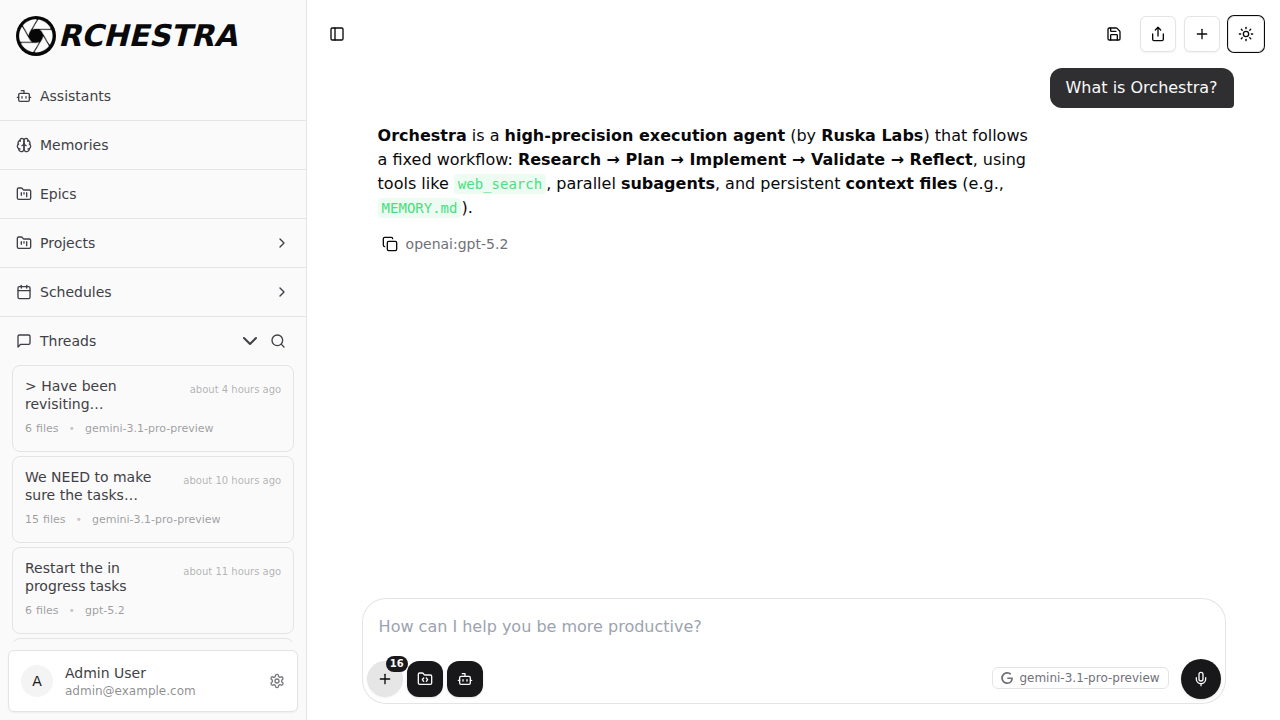
Next Steps: Start a conversation and explore the controls, or create an assistant for a tailored experience!