Assistants
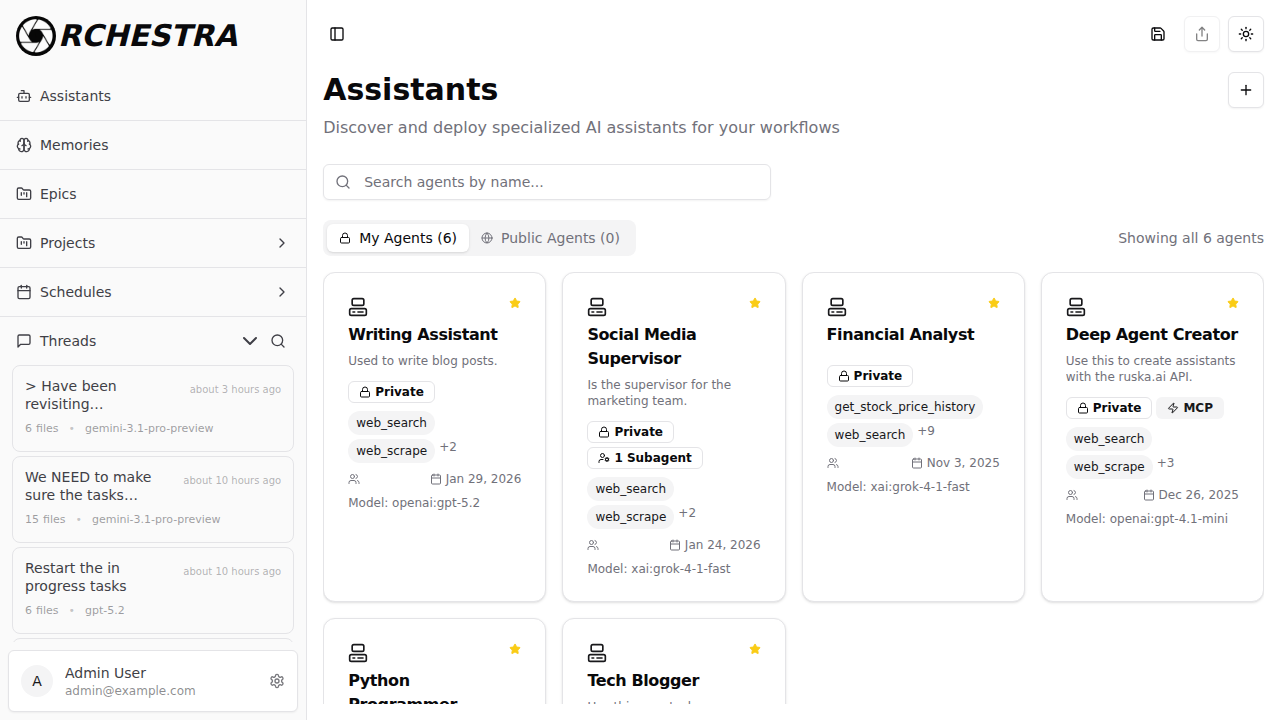
Assistants are pre-configured AI agents with specific instructions, tools, and behaviors. Think of them as specialized team members that you can deploy for specific tasks, whether through the web interface or via API.
Overview
Unlike ad-hoc chat conversations, Assistants maintain consistent behavior across multiple threads and can be configured with:
- Custom Instructions: Define the assistant's role, personality, and expertise via AGENTS.md files or legacy instruction fields
- Tool Access: Attach specific tools (search, MCP servers, A2A agents)
- Model Selection: Choose the best model for the assistant's purpose
- Reusability: Use the same assistant across many conversations
Key Concepts
What are Assistants?
Assistants are persistent configurations that define how an AI agent should behave. When you create an assistant, you're essentially creating a reusable AI persona that can be invoked anytime.
Example Assistant Configurations:
- Python Tutor: Specializes in teaching Python, has access to code execution tools
- Research Assistant: Configured with web search, focused on providing cited information
- Customer Support Agent: Has access to company knowledge base via RAG, uses friendly tone
- Data Analyst: Connected to database tools, provides insights and visualizations
Assistants vs Direct Chat
| Feature | Direct Chat | Assistants |
|---|---|---|
| Instructions | One-time system prompt | Persistent via AGENTS.md files |
| Tools | Selected per thread | Pre-configured, always available |
| Consistency | Varies by user input | Consistent behavior across threads |
| API Access | Limited | Full programmatic control |
| Use Case | Quick questions | Production deployments |
When to Use Assistants
Use Assistants when you need:
- ✅ Consistent behavior across multiple conversations
- ✅ To deploy AI agents programmatically via API
- ✅ Specific tool configurations that don't change
- ✅ Reusable AI personas for common tasks
- ✅ Team-wide shared AI configurations
Use Direct Chat when you need:
- ✅ Quick, one-off questions
- ✅ Experimentation with different approaches
- ✅ Flexibility to change tools mid-conversation
Creating an Assistant
Via Web Interface
- Click the Assistants section in the sidebar
- Click Create New Assistant or similar action
- Configure your assistant:
- Name: Give your assistant a descriptive name
- Model: Select the AI model to use
- Tools: Attach search, MCP servers, or A2A agents
- Switch to the Editor view in the file panel and create an
AGENTS.mdfile to define the assistant's instructions (see AGENTS.md: File-Based Instructions for details) - Click Save
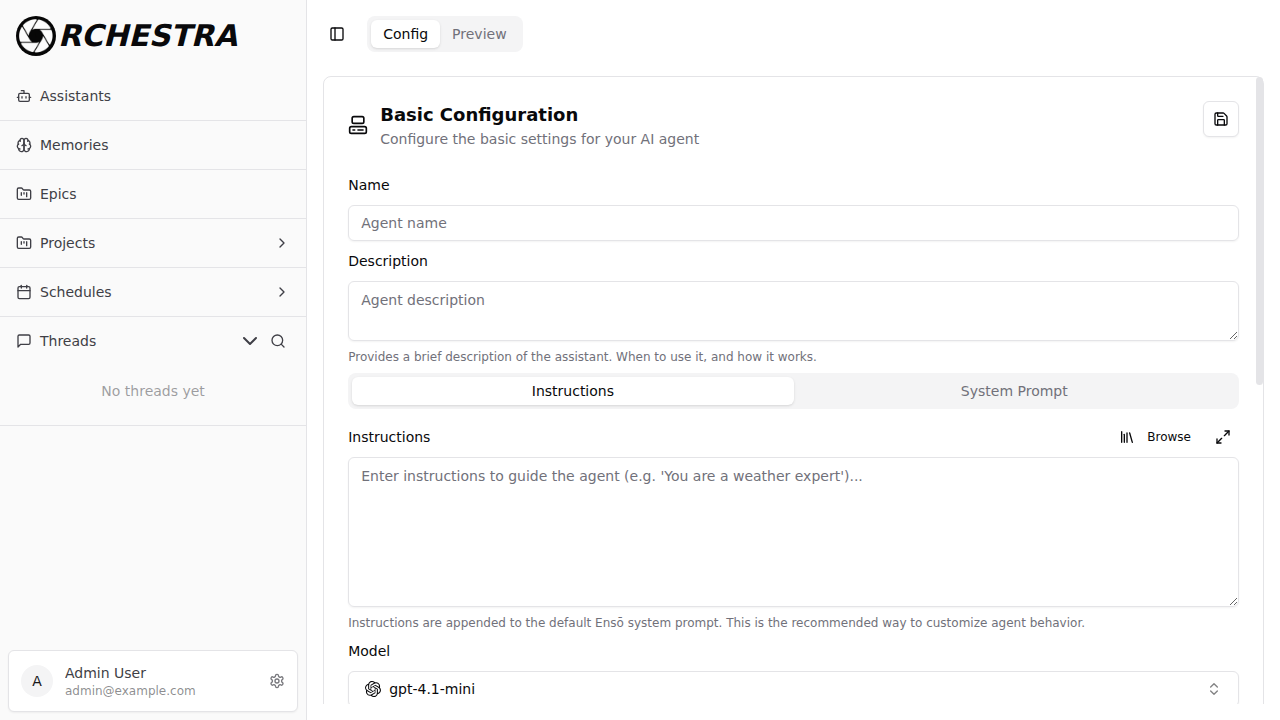
Your assistant is now ready to use in any new thread.
Orchestra uses AGENTS.md files for assistant instructions — similar to how Claude Code uses CLAUDE.md. This approach makes your agent configuration version-controllable and composable. See the AGENTS.md guide for the full workflow.
Via API
Create an assistant programmatically using the REST API. Use the files dictionary with an AGENTS.md key to define instructions:
curl -X 'POST' \
  'https://chat.ruska.ai/api/assistant' \
  -H 'accept: application/json' \
  -H 'Content-Type: application/json' \
  -d '{
  "name": "Python Tutor",
  "model": "anthropic:claude-sonnet-4-5",
  "tools": ["search"],
  "files": {
    "AGENTS.md": "# Python Tutor\n\nYou are an expert Python programming tutor. You explain concepts clearly, provide working code examples, and help debug issues step-by-step. Always use best practices and explain why."
  }
}'
Response:
{
    "id": "asst_abc123",
    "name": "Python Tutor",
    "model": "anthropic:claude-sonnet-4-5",
    "tools": ["search"],
    "files": {
        "AGENTS.md": "# Python Tutor\n\nYou are an expert Python programming tutor..."
    },
    "created_at": "2025-01-16T10:30:00Z"
}
instructions FieldYou can still use the instructions field directly, but AGENTS.md in files takes priority when both are present. See AGENTS.md: File-Based Instructions for the full precedence rules.
Using Assistants
Starting a Thread with an Assistant
Via Web Interface:
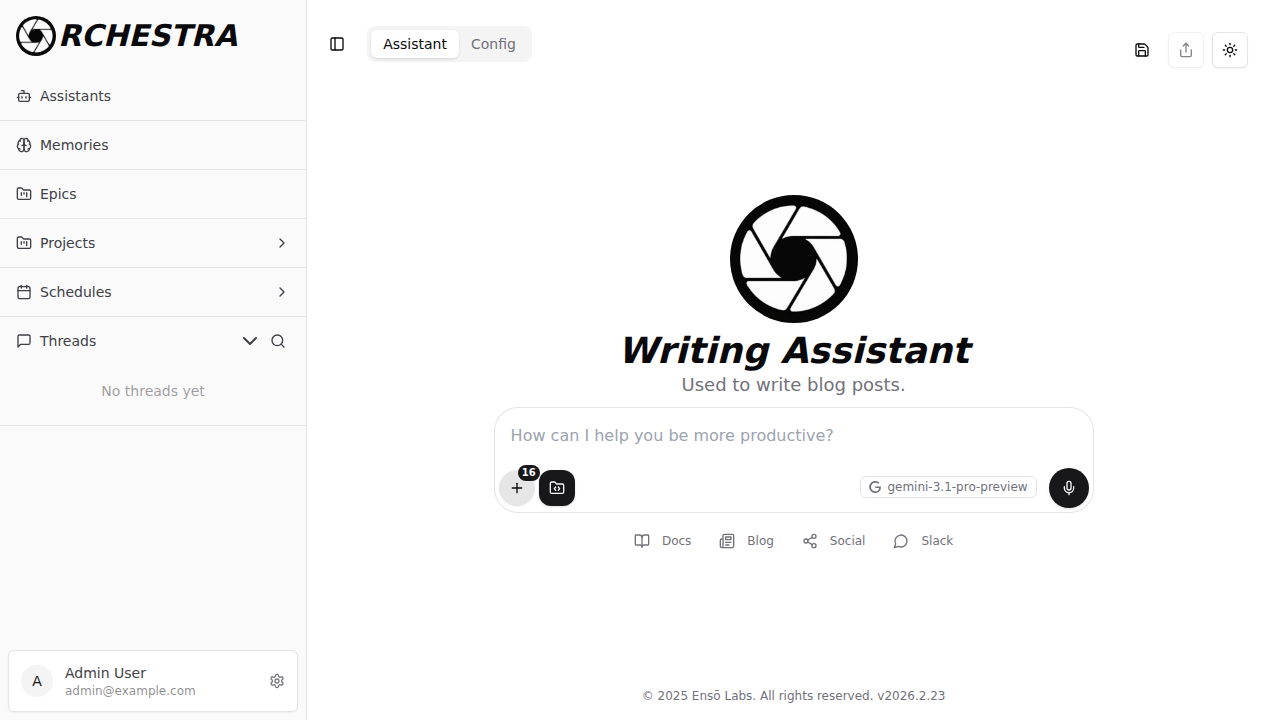
- Click on an assistant in the sidebar
- A new thread starts automatically with that assistant's configuration
- Send your message - the assistant responds according to its instructions
Via API:
curl -X 'POST' \
  'https://chat.ruska.ai/api/thread' \
  -H 'accept: application/json' \
  -H 'Content-Type: application/json' \
  -d '{
  "assistant_id": "asst_abc123",
  "query": "Explain how list comprehensions work in Python",
  "metadata": {
    "current_utc": "2025-01-16T14:30:00Z",
    "timezone": "America/New_York",
    "language": "en-US"
  }
}'
The thread will inherit the assistant's configuration (instructions, tools, model).
Managing Assistants
Updating an Assistant
Modify an assistant's configuration at any time. Click the Config tab on any assistant to view and edit its settings.
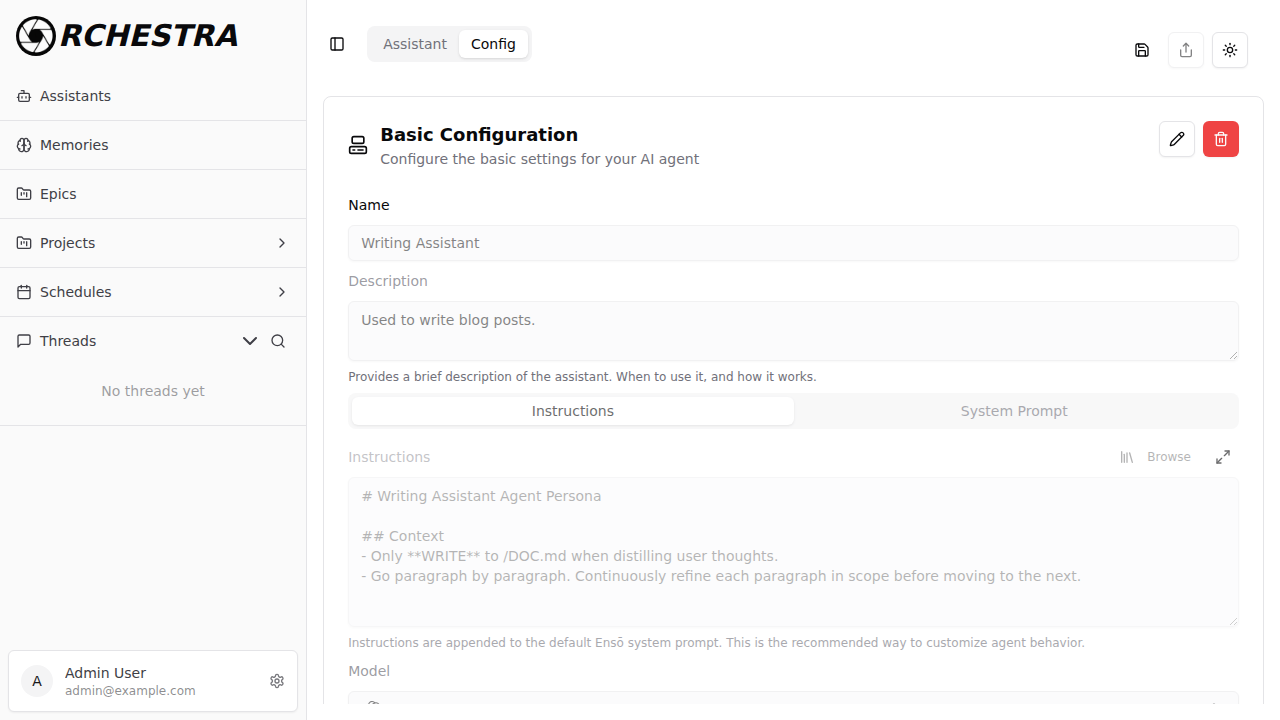
Update the AGENTS.md file in the files dictionary:
curl -X 'PATCH' \
  'https://chat.ruska.ai/api/assistant/asst_abc123' \
  -H 'Content-Type: application/json' \
  -d '{
  "files": {
    "AGENTS.md": "# Updated Instructions\n\nNew instructions content here..."
  },
  "tools": ["search", "mcp_server_1"]
}'
!!! warning "Existing Threads" Updating an assistant does not affect existing threads. Only new threads will use the updated configuration.
Deleting an Assistant
Remove an assistant when no longer needed:
curl -X 'DELETE' \
  'https://chat.ruska.ai/api/assistant/asst_abc123'
Listing Your Assistants
Get all assistants in your account:
curl -X 'GET' \
  'https://chat.ruska.ai/api/assistants' \
  -H 'accept: application/json'
Advanced Configuration
Tool Integration
Assistants can be configured with multiple tools:
{
    "name": "Research Assistant",
    "model": "anthropic:claude-sonnet-4-5",
    "tools": ["search"],
    "files": {
        "AGENTS.md": "# Research Assistant\n\nYou are a research assistant..."
    },
    "mcp": {
        "ruska_mcp": {
            "url": "https://chat.ruska.ai/mcp",
            "headers": {
                "x-api-key": "your_api_key"
            }
        }
    },
    "a2a": {
        "ruska_a2a": {
            "base_url": "https://a2a.ruska.ai",
            "agent_card_path": "/.well-known/agent.json"
        }
    }
}
This assistant has access to:
- Built-in search tool
- MCP server tools
- A2A agent capabilities
Metadata for System Prompts
The metadata property supports three fields that are automatically appended to system prompts:
{
    "name": "Marketing Copy Writer",
    "model": "anthropic:claude-sonnet-4-5",
    "files": {
        "AGENTS.md": "# Marketing Copy Writer\n\nYou are a professional copywriter..."
    },
    "metadata": {
        "current_utc": "2025-01-16T10:00:00Z",
        "timezone": "America/Los_Angeles",
        "language": "en-US"
    }
}
Supported metadata fields:
current_utc: Current timestamp (ISO 8601 format) - useful for time-aware responsestimezone: User's timezone (e.g., "America/Denver", "Europe/London")language: User's language preference (e.g., "en-US", "es-ES", "fr-FR")
These values are appended to the end of the system prompt, providing context to the AI model.
Scheduled Assistants
Combine assistants with the Schedules API to create recurring agent tasks:
- Daily report generation
- Periodic data analysis
- Automated monitoring and alerts
- Content publication workflows
See the Schedules section in your user settings for more information.
Best Practices
!!! tip "Clear Instructions" Be specific in your AGENTS.md. Instead of "helpful assistant," try "You are a technical documentation writer who explains complex topics simply, uses examples, and always includes code snippets." See the AGENTS.md guide for writing tips.
!!! tip "Model Selection" Match the model to the task: - Haiku: Quick responses, simple tasks, high volume - Sonnet: Complex reasoning, coding, analysis - Opus: Most capable, but slower and more expensive - GPT-4o: Multi-modal (text + images)
!!! tip "Tool Scoping" Only attach tools the assistant actually needs. Fewer tools = faster responses and lower costs.
!!! info "Version Control" Since AGENTS.md is a file, you can store it in Git alongside your project code. This gives you version history, team review, and reproducible agent configurations.
!!! warning "API Keys in Tools" Store sensitive credentials (MCP keys, A2A tokens) securely. Never commit them to version control.
Examples
Example 1: Code Review Assistant
{
    "name": "Code Reviewer",
    "model": "anthropic:claude-sonnet-4-5",
    "tools": [],
    "files": {
        "AGENTS.md": "# Code Reviewer\n\nYou are an expert code reviewer. Analyze code for:\n- Bugs and logic errors\n- Performance issues\n- Security vulnerabilities\n- Code style and best practices\n\nProvide specific, actionable feedback with examples."
    }
}
Example 2: Customer Support with Knowledge Base
{
    "name": "Support Agent",
    "model": "openai:gpt-4o",
    "tools": ["search"],
    "files": {
        "AGENTS.md": "# Support Agent\n\nYou are a friendly customer support agent. Use the knowledge base to answer questions accurately. If you don't know, escalate to a human agent. Always be empathetic and solution-focused."
    }
}
Example 3: Data Analysis Agent
{
    "name": "Data Analyst",
    "model": "anthropic:claude-sonnet-4-5",
    "files": {
        "AGENTS.md": "# Data Analyst\n\nYou are a data analyst specialized in business intelligence. Analyze data, create insights, and suggest actionable recommendations. Use visualizations when helpful."
    },
    "a2a": {
        "sql_agent": {
            "base_url": "https://sql-agent.example.com",
            "agent_card_path": "/.well-known/agent.json"
        }
    }
}
API Reference
For complete API documentation, see:
Related Documentation
- AGENTS.md: File-Based Instructions: Configure assistants using version-controllable Markdown files
- Threads: Learn about conversation management
- Tools: Explore available tool integrations
- MCP Integration: Connect Model Context Protocol servers
- A2A Integration: Enable agent-to-agent communication
- Storage: Add knowledge bases to your assistants
Next Steps: Create your first assistant and start a thread to see it in action!