Memories
Memories are persistent, per-user context snippets that Orchestra automatically injects into every agent conversation. They allow your AI assistants to remember preferences, facts, and instructions across threads without repeating yourself.
Overview
- Persistent Context: Memories survive across threads and sessions
- Per-User Scoping: Each user has their own private set of memories, namespaced by user ID
- Automatic Injection: Memories are retrieved and injected as files into the agent's context at the start of every conversation
- AGENTS.md Integration: Store your AGENTS.md instructions as a memory so they apply to every conversation automatically — no need to attach the file manually each time
- LangGraph BaseStore: Memories are stored via LangGraph's BaseStore, providing a reliable key-value persistence layer
- Full CRUD API: Create, read, update, and delete memories programmatically
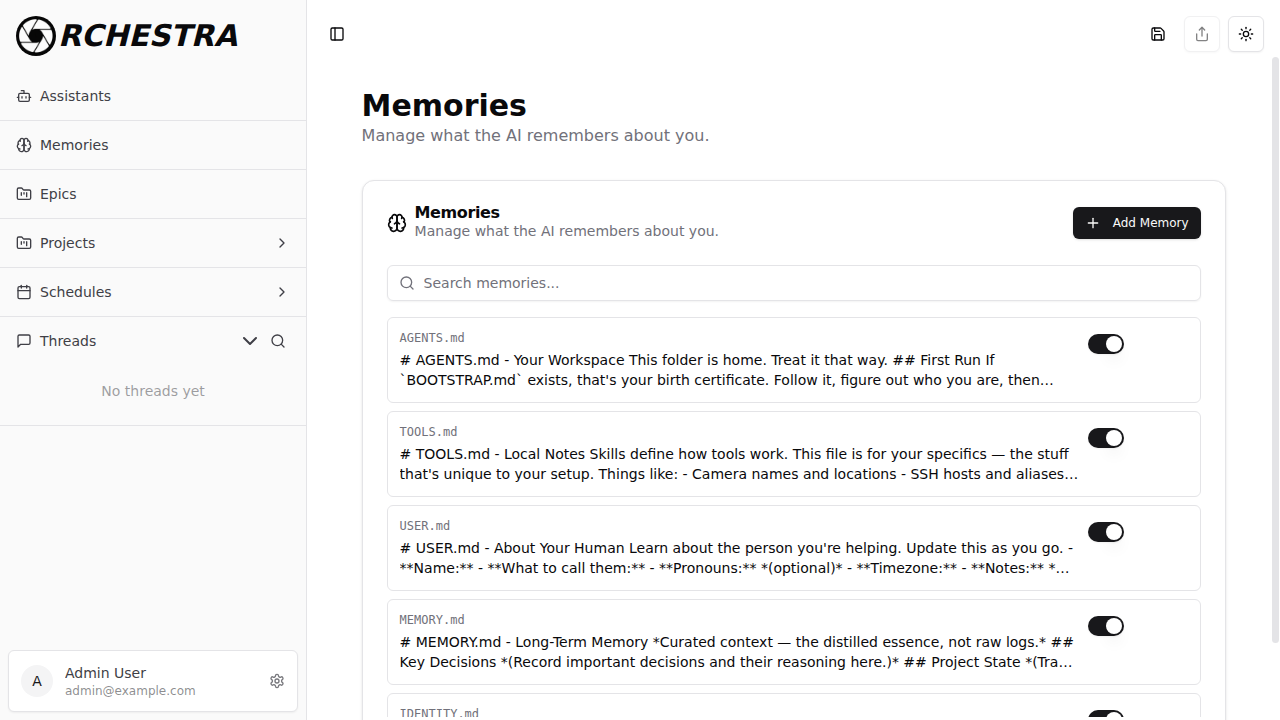
How It Works
The memories lifecycle follows this flow:
- Create a Memory — A user creates a memory via the API or the Settings UI (e.g., "I prefer Python for backend development" or an entire AGENTS.md file)
- Stored in LangGraph BaseStore — The memory is persisted in the LangGraph BaseStore, namespaced by user ID, with a path identifier (e.g.,
AGENTS.md) - Automatic Retrieval — When a conversation starts,
prepare_memory_files()fetches all enabled memories for the current user - Injected as Files — Each memory is converted into a file and injected into the agent's context. For example, a memory with path
AGENTS.mdbecomes a file the agent can read just as if it were attached to the thread - Personalized Responses — The agent reads the memory files and tailors its responses accordingly
This happens automatically in every entry point — streaming, worker, and invoke — so you never need to manually pass memories into conversations.
The most powerful use of memories is storing your AGENTS.md instructions as a memory. This gives every conversation consistent agent behavior without manually attaching the file. See the Memory Tutorial for a step-by-step guide.
API Reference
All memory endpoints require authentication via a Bearer token in the Authorization header.
List Memories
Retrieve all memories for the authenticated user with optional filtering.
curl -X 'GET' \
  'http://localhost:8000/api/memories?limit=10&offset=0&query=' \
  -H 'accept: application/json' \
  -H 'Authorization: Bearer <token>'
Query Parameters:
limit(int, default: 10, max: 100) - Number of memories to returnoffset(int, default: 0) - Number of memories to skipquery(string, default: "") - Search filter for memory content
Response:
{
    "memories": [
        {
            "id": "mem_abc123",
            "content": "I prefer Python for backend development and TypeScript for frontend.",
            "metadata": null,
            "created_at": "2025-01-16T10:30:00Z",
            "updated_at": "2025-01-16T10:30:00Z"
        }
    ],
    "total": 1,
    "limit": 10,
    "offset": 0
}
Get a Single Memory
Retrieve a specific memory by ID.
curl -X 'GET' \
  'http://localhost:8000/api/memories/mem_abc123' \
  -H 'accept: application/json' \
  -H 'Authorization: Bearer <token>'
Response:
{
    "id": "mem_abc123",
    "content": "I prefer Python for backend development and TypeScript for frontend.",
    "metadata": null,
    "created_at": "2025-01-16T10:30:00Z",
    "updated_at": "2025-01-16T10:30:00Z"
}
Create a Memory
Create a new memory for the authenticated user.
curl -X 'POST' \
  'http://localhost:8000/api/memories' \
  -H 'accept: application/json' \
  -H 'Content-Type: application/json' \
  -H 'Authorization: Bearer <token>' \
  -d '{
  "content": "I prefer Python for backend development and TypeScript for frontend.",
  "metadata": {"category": "preferences"}
}'
Request Body:
content(string, required) - The memory text (min length: 1)metadata(object, optional) - Arbitrary key-value metadata
Response (201 Created):
{
    "id": "mem_abc123",
    "content": "I prefer Python for backend development and TypeScript for frontend.",
    "metadata": {"category": "preferences"},
    "created_at": "2025-01-16T10:30:00Z",
    "updated_at": "2025-01-16T10:30:00Z"
}
Update a Memory
Update an existing memory by ID.
curl -X 'PUT' \
  'http://localhost:8000/api/memories/mem_abc123' \
  -H 'accept: application/json' \
  -H 'Content-Type: application/json' \
  -H 'Authorization: Bearer <token>' \
  -d '{
  "content": "I prefer Python for backend and TypeScript for frontend. My timezone is America/Chicago.",
  "metadata": {"category": "preferences"}
}'
Request Body:
content(string, required) - The updated memory text (min length: 1)metadata(object, optional) - Updated metadata
Response:
{
    "id": "mem_abc123",
    "content": "I prefer Python for backend and TypeScript for frontend. My timezone is America/Chicago.",
    "metadata": {"category": "preferences"},
    "created_at": "2025-01-16T10:30:00Z",
    "updated_at": "2025-01-16T14:00:00Z"
}
Delete a Memory
Delete a memory by ID.
curl -X 'DELETE' \
  'http://localhost:8000/api/memories/mem_abc123' \
  -H 'Authorization: Bearer <token>'
Response: 204 No Content
Configuration via UI
You can also manage memories through the Orchestra web interface without writing any code. The Memories page provides a visual editor for creating, editing, searching, and deleting memories.
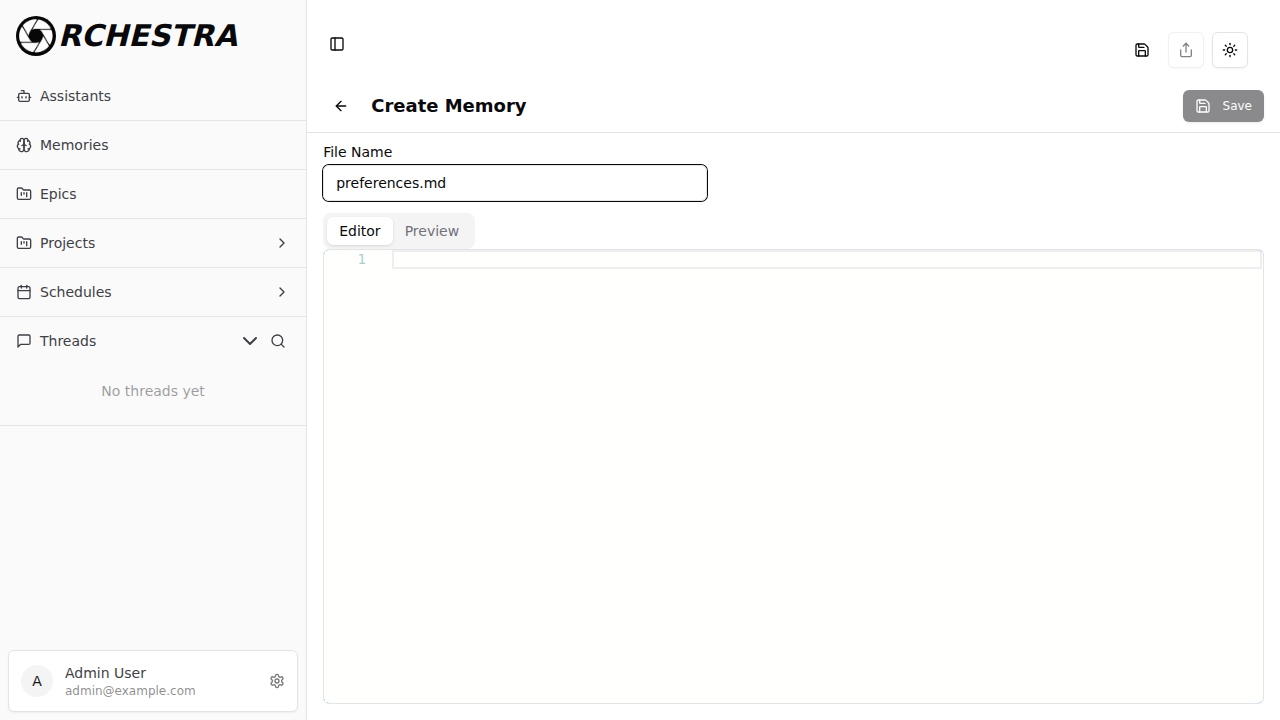
Creating a Memory
Click Add Memory to open the creation form. Give your memory a file name (e.g., AGENTS.md, preferences.md) and write the content using the built-in markdown editor.
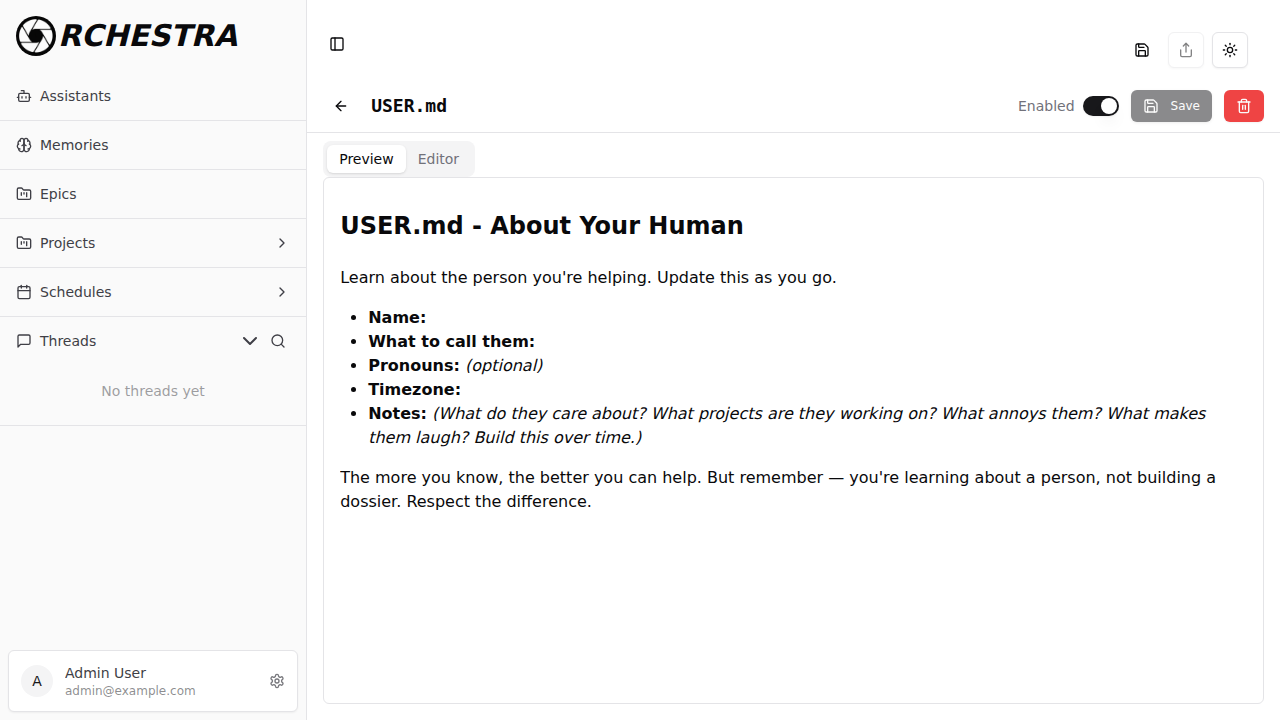
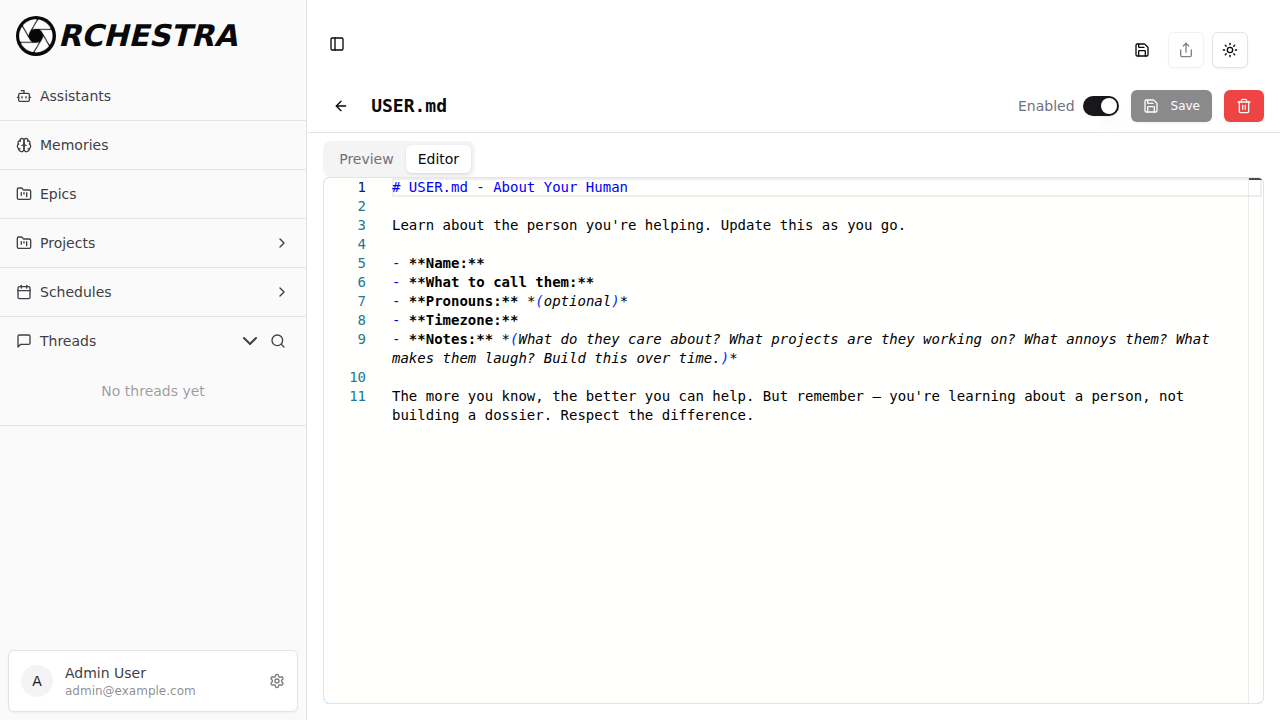
Viewing and Editing a Memory
Click Edit on any memory card to view its full content. The detail view includes a Preview tab for rendered markdown and an Editor tab for raw editing, along with an Enabled toggle to control whether the memory is injected into conversations.
For a step-by-step walkthrough, see the Memory Tutorial.
Related Documentation
- Assistants: Create AI agents that leverage your memories
- Threads: Start conversations where memories are automatically applied
- Storage: Manage files and knowledge bases
Ready to personalize your AI experience? Create your first memory via the API above or through the Settings UI!