Model Context Protocol (MCP)


MCP integration is actively being enhanced with new features and capabilities. This documentation reflects the current implementation and is updated regularly.
MCP is an open protocol that standardizes how applications provide context to LLMs. Think of MCP like a USB-C port for AI applications. Just as USB-C provides a standardized way to connect your devices to various peripherals and accessories, MCP provides a standardized way to connect AI models to different data sources and tools.
Introduction
Ruska Labs MCP support is based on the Langchain MCP Adapter repository. A sample MCP server can be found at Ruska Labs - MCP SSE Server.
See this permalink for an example for how to include x-mcp-key authentication.
Quick Start (UI)
Step 1: Open the Manage Tools Modal
Click the tool count button (shows the number of active tools) next to the chat input, then select Configure Tools from the dropdown menu.
This opens the Tool Selection modal where you can manage all tool integrations across four categories:
- Platform — Built-in tools (search, sandbox, finance, memory, etc.)
- API — Custom API tools you create
- MCP — Model Context Protocol server integrations
- A2A — Agent-to-Agent protocol connections
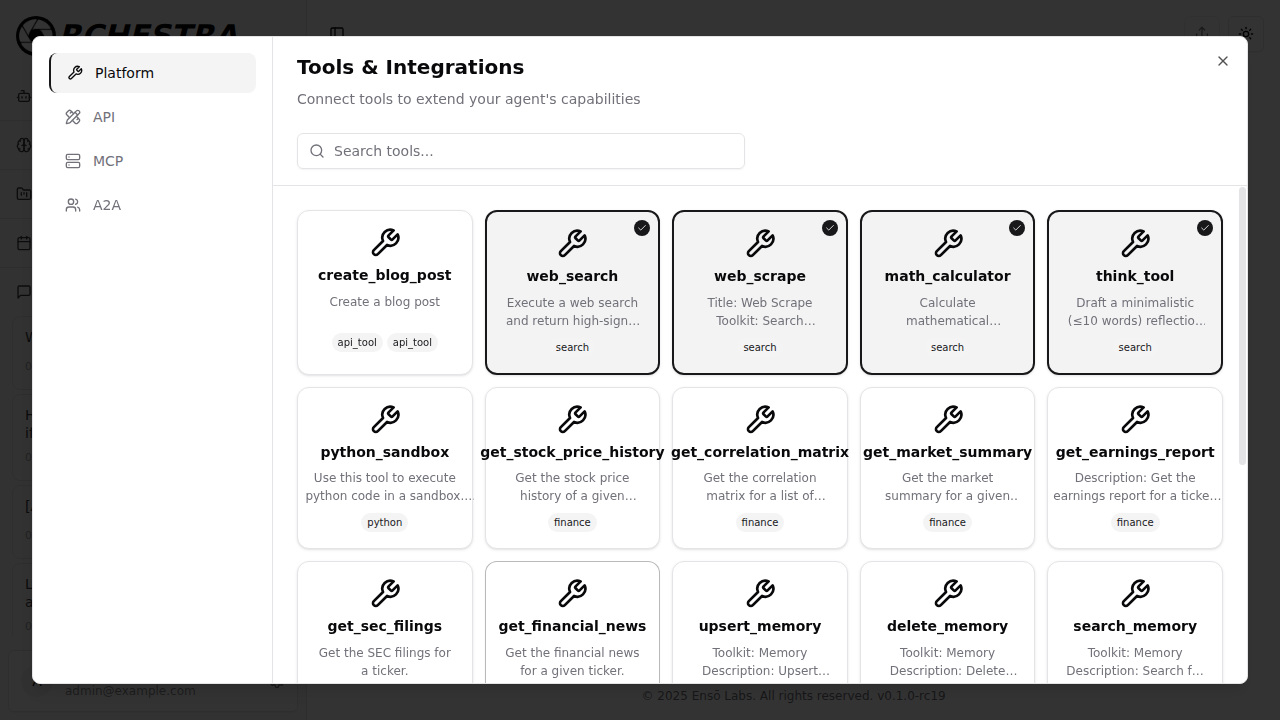
Step 2: Navigate to the MCP Tab
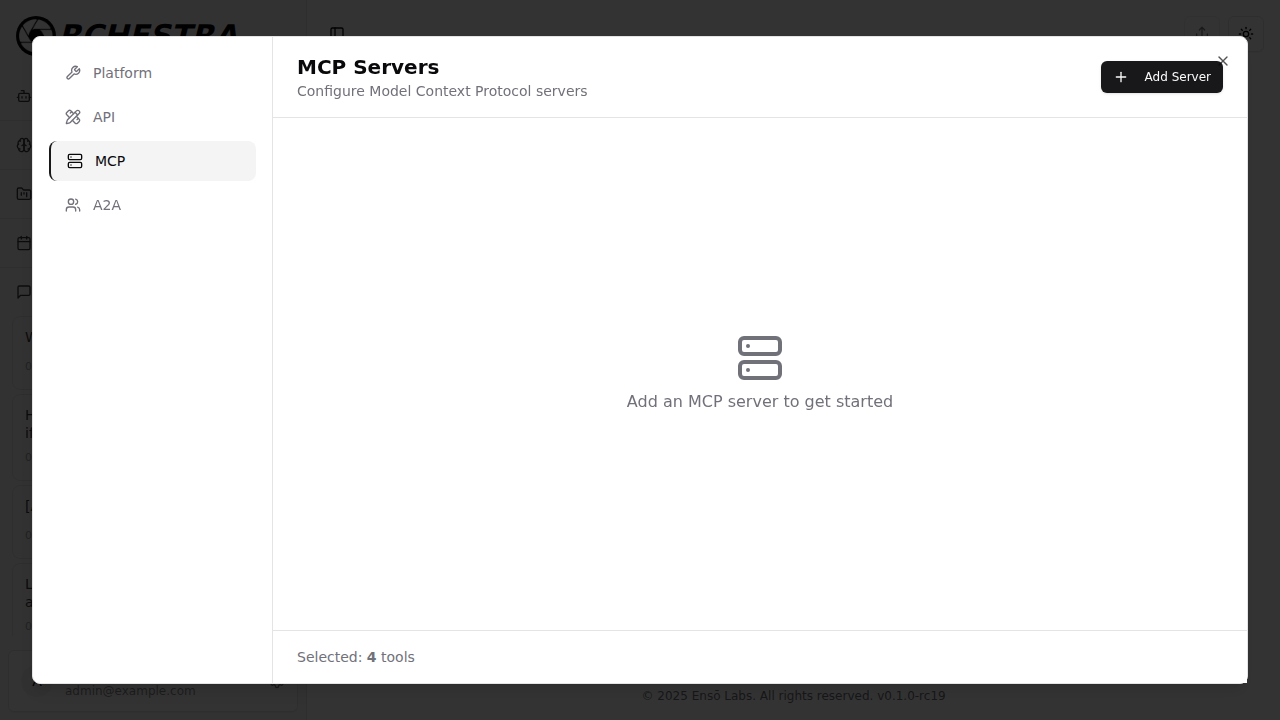
Click the MCP tab in the left sidebar to access the MCP server configuration panel.
If no servers are configured yet, you'll see an empty state prompting you to add one:
Step 3: Add an MCP Server
Click the + Add Server button in the top-right corner to open the server configuration form.
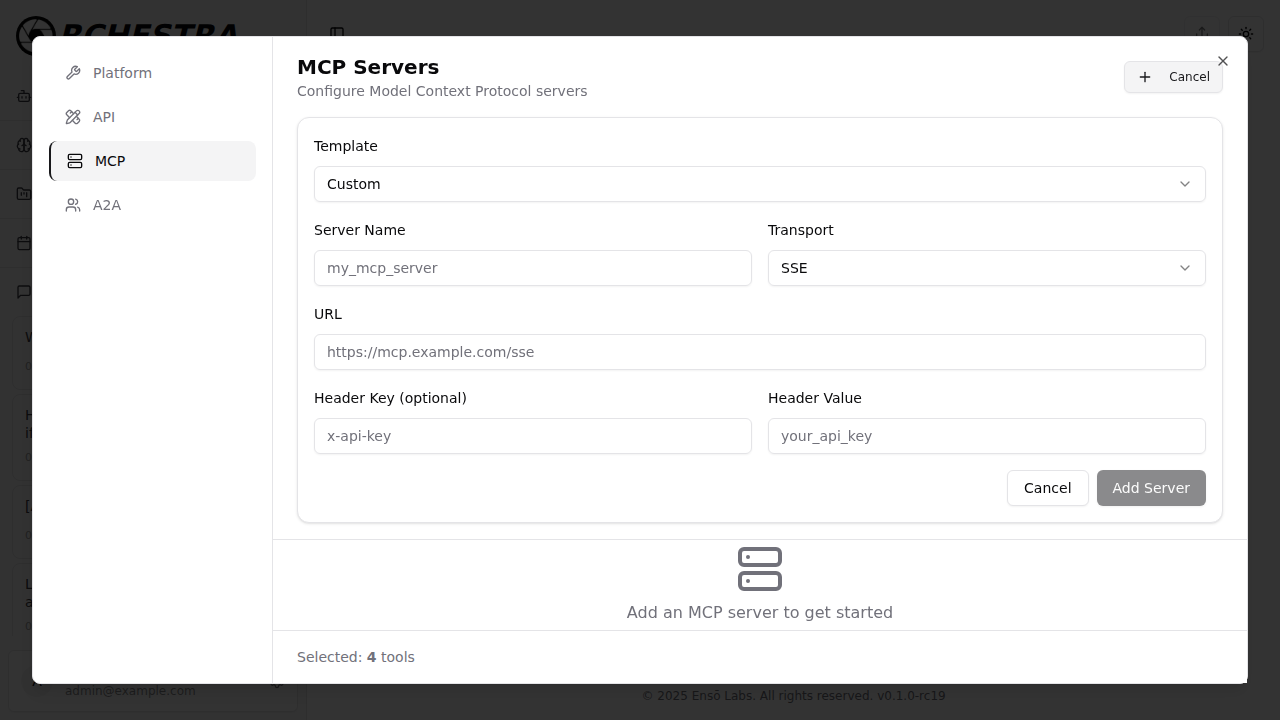
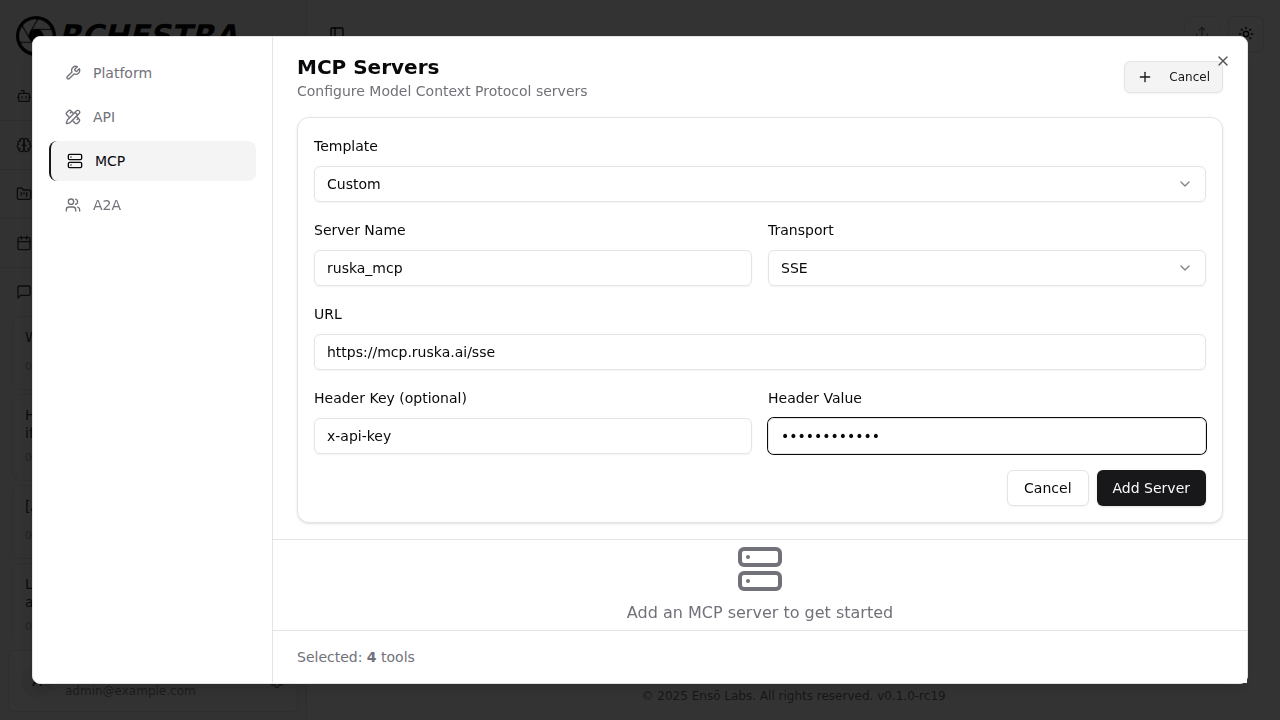
The form includes the following fields:
| Field | Description |
|---|---|
| Template | Choose a preset (Custom, Ruska MCP, GitHub MCP) or configure manually |
| Server Name | A unique identifier for your server (e.g., my_mcp_server) |
| Transport | Protocol type: SSE, Streamable HTTP, or STDIO |
| URL | The MCP server endpoint URL |
| Header Key (optional) | Authentication header name (e.g., x-api-key) |
| Header Value | The corresponding header value / API key |
Use the Template dropdown to quickly configure common MCP servers. Selecting a template pre-fills the Server Name, Transport, and URL fields.
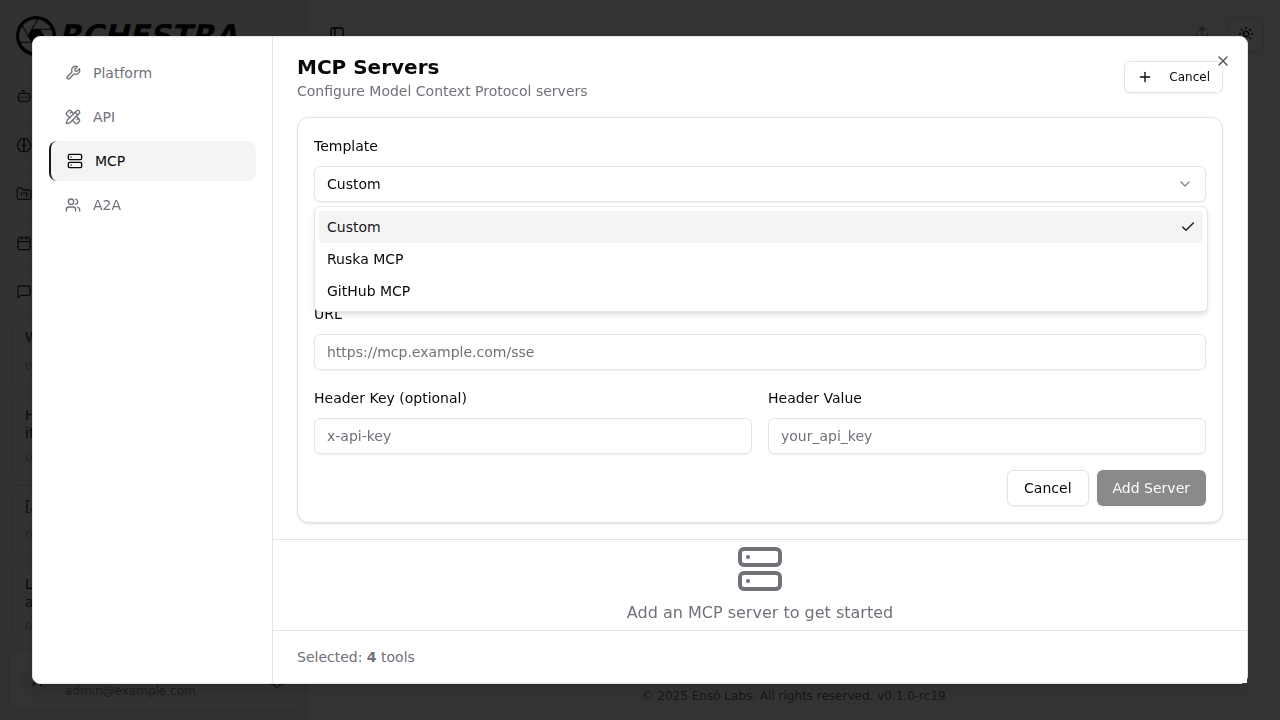
Step 4: Save and Fetch Tools
Fill in your server details and click Add Server to save the configuration:
Once saved, the server appears in the Configured Servers list with its transport type and URL. Click Fetch Tools to connect and load the available tools from the server:
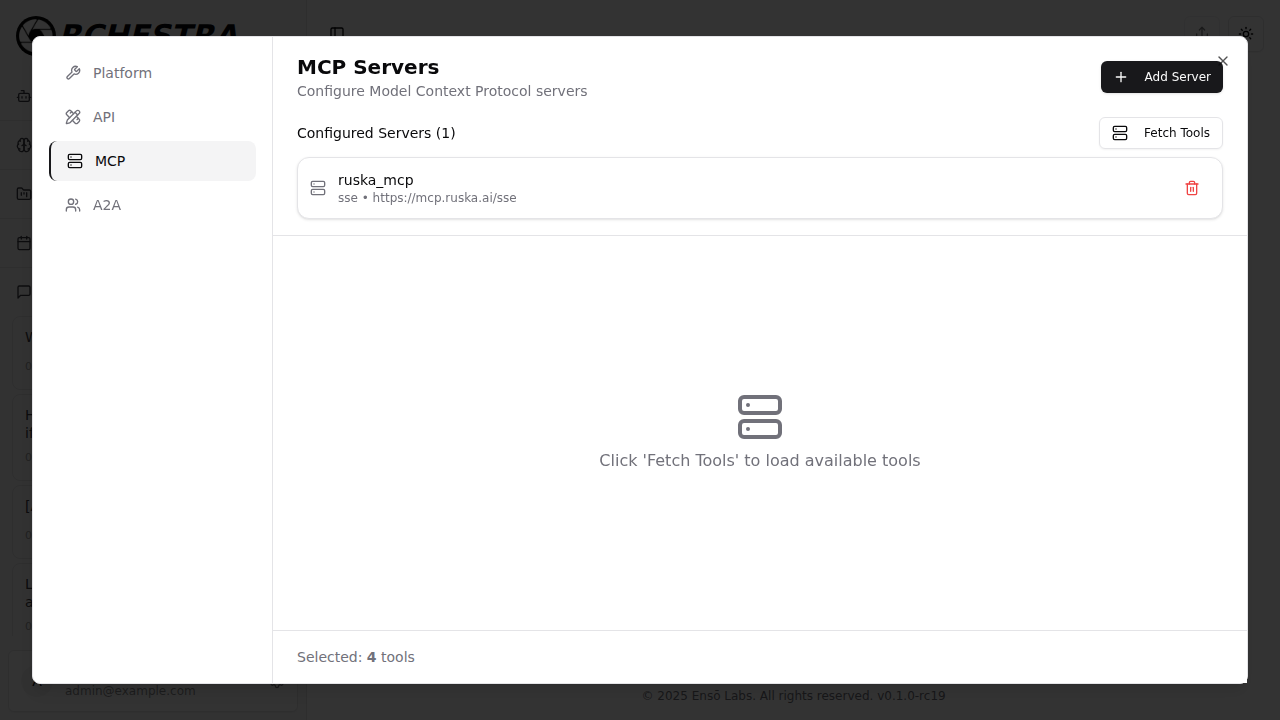
After fetching, the server's tools appear as selectable cards in the tool grid below. Click any tool card to enable or disable it — selected tools show a checkmark badge.
Step 5: Use MCP Tools
Close the modal and start chatting. MCP tools you selected are now available to the AI agent. When the agent uses an MCP tool, you'll see tool execution messages in the thread between your message and the AI response. Click on a tool message to view its execution details.
Your MCP server configuration is saved to your user defaults on the backend, so it persists across sessions. You can manage your servers at any time by reopening the Manage Tools modal.
If an MCP server is unreachable or returns an error during tool discovery, the agent will proceed without those tools. No error is shown in the chat UI. Check the backend logs for Error fetching MCP tools if expected tools are missing from the agent's tool list.
How MCP Configuration Works
The mcp property accepts a dictionary of server names mapped to their configurations. This allows you to connect multiple MCP servers simultaneously:
{
    "mcp": {
        "server_name_1": {
            "transport": "sse",
            "url": "https://mcp-server1.example.com",
            "headers": {
                "x-mcp-key": "your_key_1"
            }
        },
        "server_name_2": {
            "transport": "sse",
            "url": "https://mcp-server2.example.com",
            "headers": {
                "x-mcp-key": "your_key_2"
            },
            "enabled": false
        }
    }
}
Each key in the mcp dictionary is a unique server name you choose (e.g., "weather_server", "database_server", "ruska_mcp").
Configuration Fields
| Field | Type | Required | Description |
|---|---|---|---|
transport | string | Yes | Protocol type: sse, streamable_http, or stdio |
url | string | Yes | The MCP server endpoint URL |
headers | object | No | HTTP headers for authentication (e.g., {"x-api-key": "..."}) |
enabled | boolean | No | Toggle the server on/off without removing its config. Defaults to true |
Setting "enabled": false lets you temporarily disable an MCP server without deleting its configuration. Servers without the enabled field are enabled by default (backwards compatible).
Supported Transports
| Transport | Description |
|---|---|
| SSE | Server-Sent Events — the most common transport for remote MCP servers |
| Streamable HTTP | HTTP-based streaming transport |
| STDIO | Standard I/O — for locally running MCP servers |
Granular Tool Selection
Once MCP servers are configured, you can selectively enable specific tools from those servers. In the UI, simply click tool cards to toggle them. Via the API, use the tools property:
{
    "query": "Get the weather in Denver",
    "model": "anthropic:claude-sonnet-4-5",
    "mcp": {
        "weather_server": {
            "transport": "sse",
            "url": "https://weather-mcp.example.com"
        },
        "database_server": {
            "transport": "sse",
            "url": "https://db-mcp.example.com"
        }
    },
    "tools": [
        "get_weather",
        "get_forecast",
        "query_database",
        "search"
    ]
}
Benefits of Granular Tool Selection:
- Load multiple MCP servers at once without enabling all their tools
- Restrict assistants to specific tools from those servers for better security
- Mix MCP tools with built-in platform tools like
search - Better performance through selective tool access — fewer tools means faster inference
Example with Assistants:
curl -X 'POST' \
  'https://chat.ruska.ai/api/assistant' \
  -H 'Content-Type: application/json' \
  -d '{
  "name": "Weather Assistant",
  "instructions": "You are a weather information assistant.",
  "model": "anthropic:claude-sonnet-4-5",
  "mcp": {
    "weather_server": {
      "transport": "sse",
      "url": "https://weather-mcp.example.com"
    }
  },
  "tools": ["get_weather", "search"]
}'
This assistant has access to the get_weather tool from the MCP server and the built-in search tool, but NOT other tools the weather server might expose.
Example API Usage:
GET MCP server information
curl -X 'POST' \
  'https://chat.ruska.ai/api/tools/mcp/info' \
  -H 'accept: application/json' \
  -H 'Content-Type: application/json' \
  -d '{
  "mcp": {
    "ruska_mcp": {
      "headers": {
        "x-api-key": "your_api_key"
      },
      "transport": "streamable_http",
      "url": "https://mcp.ruska.ai/sse"
    }
  }
}'
Request: Create New Thread
curl -X 'POST' \
  'https://chat.ruska.ai/api/llm/thread' \
  -H 'accept: application/json' \
  -H 'Content-Type: application/json' \
  -d '{
  "images": [],
  "mcp": {
    "ruska_mcp": {
      "headers": {
        "x-api-key": "your_api_key"
      },
      "transport": "http",
      "url": "https://chat.ruska.ai/mcp"
    }
  },
  "model": "openai-gpt-4o",
  "query": "What is the latest Bitcoin price? Use search.",
  "system": "You are a helpful assistant.",
  "tools": []
}' | jq
Response JSON: Create New Thread
{
    "thread_id": "698e540b-8ae3-4db7-b5c5-526c438c4266",
    "answer": {
        "content": "The latest price of Bitcoin appears to vary among the sources. According to a search result from Yahoo Finance, the last known price of Bitcoin is approximately $97,305.19 per BTC, while a result from Coinbase lists Bitcoin at $88,316.34 per BTC. Prices can vary slightly between exchanges due to different market conditions. For the most accurate and current price, you might want to check a live cryptocurrency exchange platform like [Coinbase](https://www.coinbase.com/price/bitcoin) or [Yahoo Finance](https://finance.yahoo.com/quote/BTC-USD/)."
        //... Response Metadata
    }
}