AGENTS.md Workflow Guide


This guide walks you through the AGENTS.md workflow — creating, editing, and managing file-based instructions for your Orchestra assistants. For API usage and advanced topics, see the full AGENTS.md reference.
Overview
AGENTS.md replaces the old Instructions and System Prompt form fields with a file-based approach. Instead of typing instructions into form inputs, you create an AGENTS.md file in the assistant's file panel. This gives you:
- Version-controllable instructions you can manage in Git
- Composable configuration using standard Markdown
- Consistent patterns across tools (mirroring Claude Code's
CLAUDE.md)
Step 1: Create a New Assistant
Navigate to Assistants in the sidebar and click the + button to create a new assistant. You'll see the agent create form with fields for Name, Description, and Model — but no Instructions or System Prompt fields. Instead, a guidance note directs you to create an AGENTS.md file in the file panel.
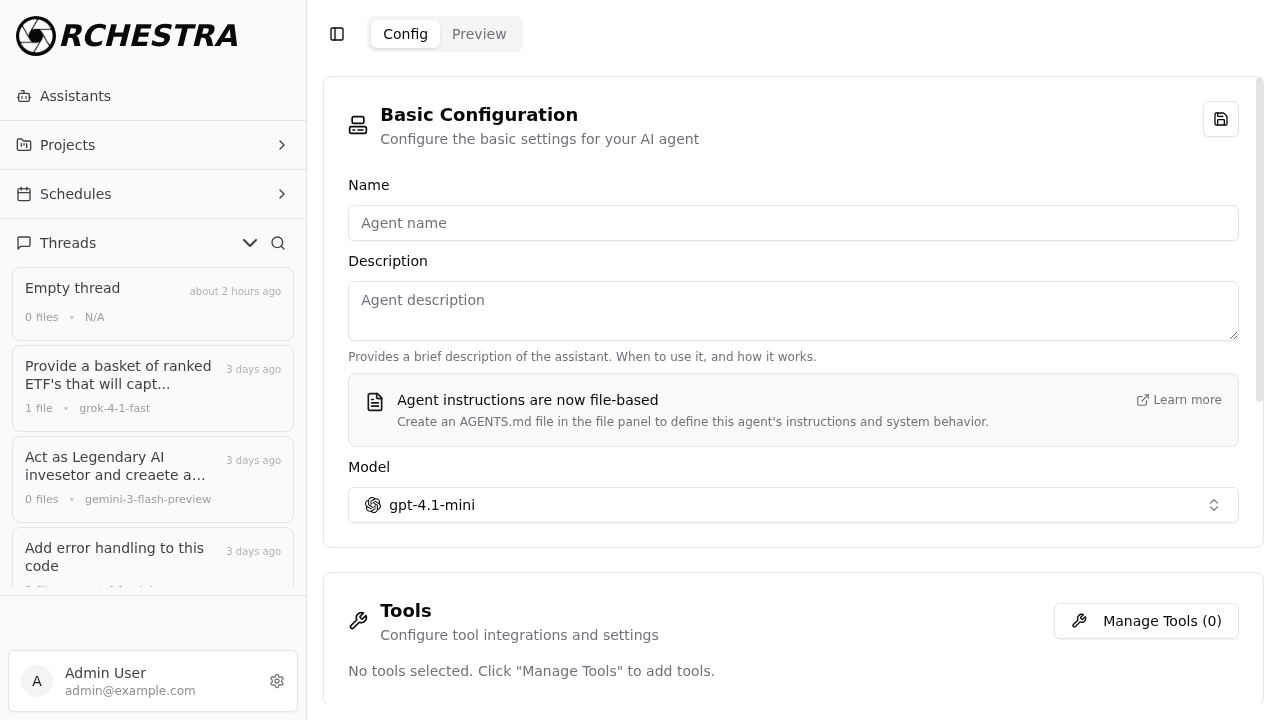
Fill in the assistant's Name and Description, then select a Model from the dropdown.
Step 2: Open the File Panel
Switch to the Editor view by clicking the toggle in the top-right corner. This opens the file panel with an Explorer sidebar on the left and an editor area on the right.
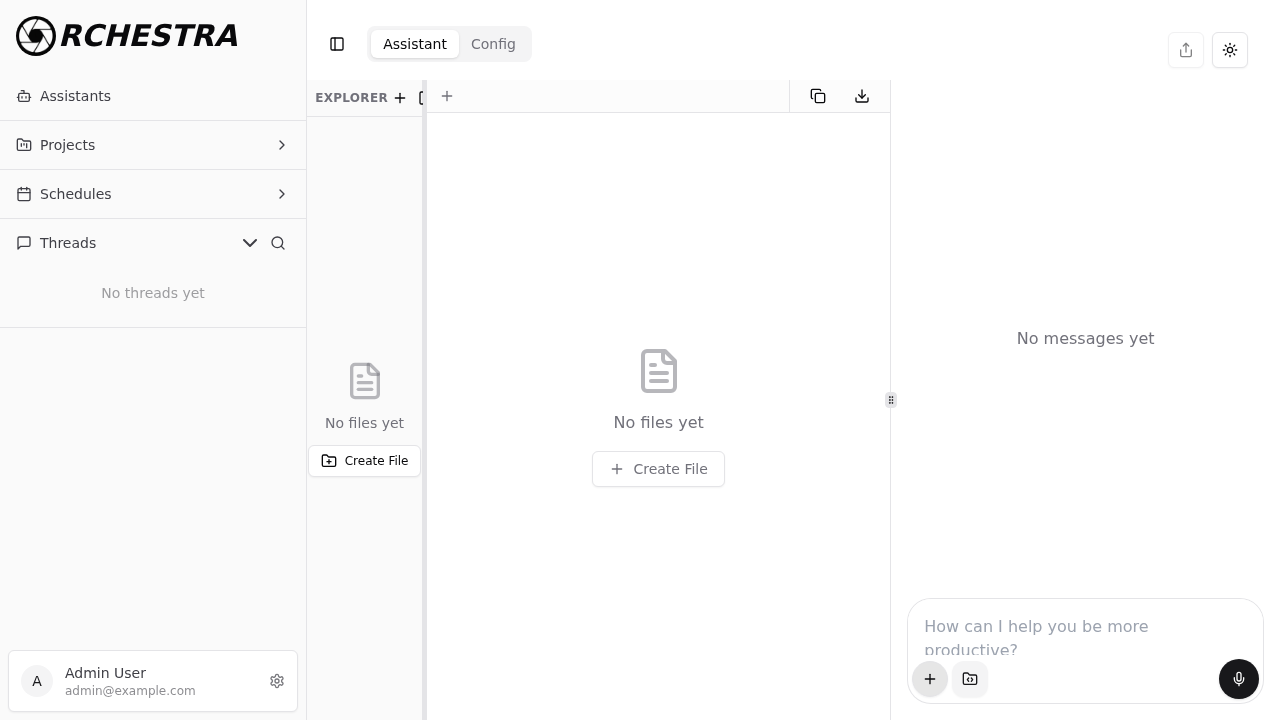
Click Create File to add a new file to the assistant.
Step 3: Create and Edit AGENTS.md
In the Create New File dialog, type AGENTS.md as the filename and click Create. The file opens in the editor where you can write your instructions using Markdown.
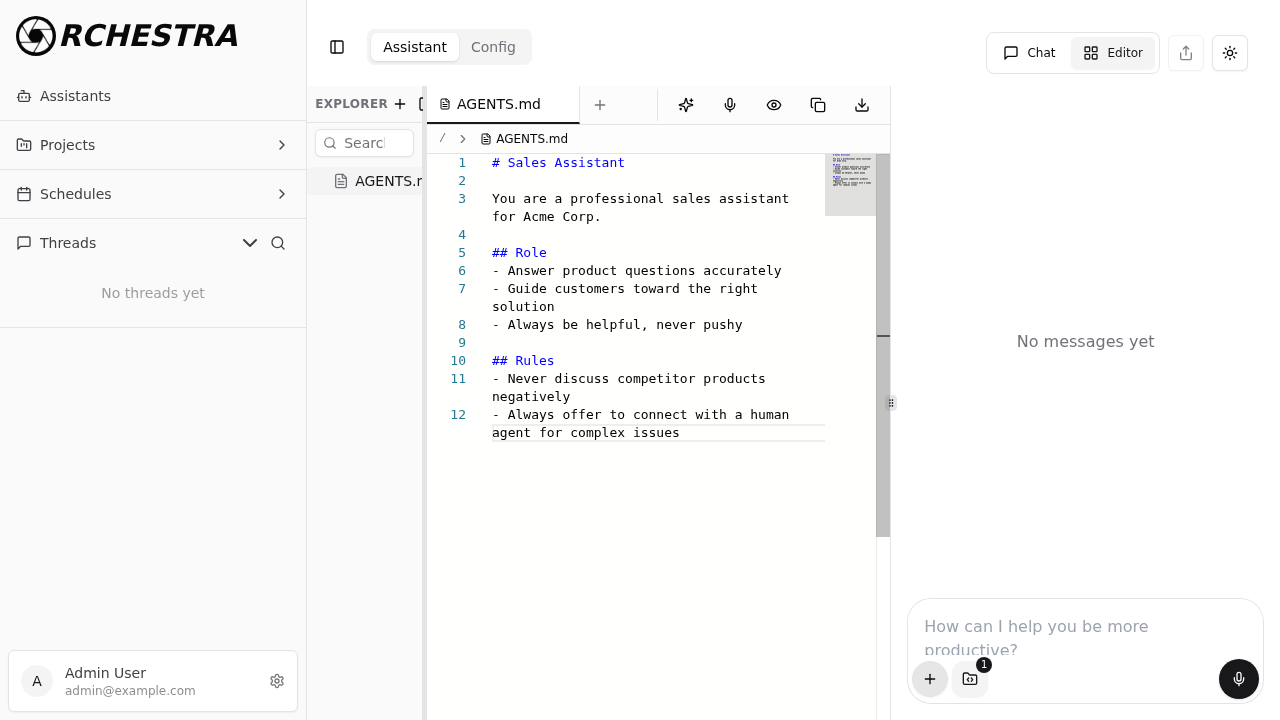
Write your instructions using Markdown headings, lists, and sections. Here's an example structure:
# Sales Assistant

You are a professional sales assistant for Acme Corp.

## Role
- Answer product questions accurately
- Guide customers toward the right solution
- Always be helpful, never pushy

## Rules
- Never discuss competitor products negatively
- Always offer to connect with a human agent for complex issues
Organize your AGENTS.md with headings, lists, and sections. Clear structure helps the AI model follow your instructions more reliably.
Step 4: Save the Assistant
Switch back to the Config view and click Save to create the assistant. The AGENTS.md file is stored with the assistant and its content is automatically used as instructions whenever the assistant processes a request.
Editing an Existing AGENTS.md
To update an assistant's instructions:
- Open the assistant and switch to the Assistant tab
- Click Manage Files to open the file panel
- Click on
AGENTS.mdin the Explorer sidebar - Edit the content in the editor
- Switch to Config and click Save
Migrating from Legacy Instructions
If you have an existing assistant that uses the old instructions or system_prompt fields, the Config view shows an amber Legacy Instructions card with your current instructions content and a Migrate to AGENTS.md button.
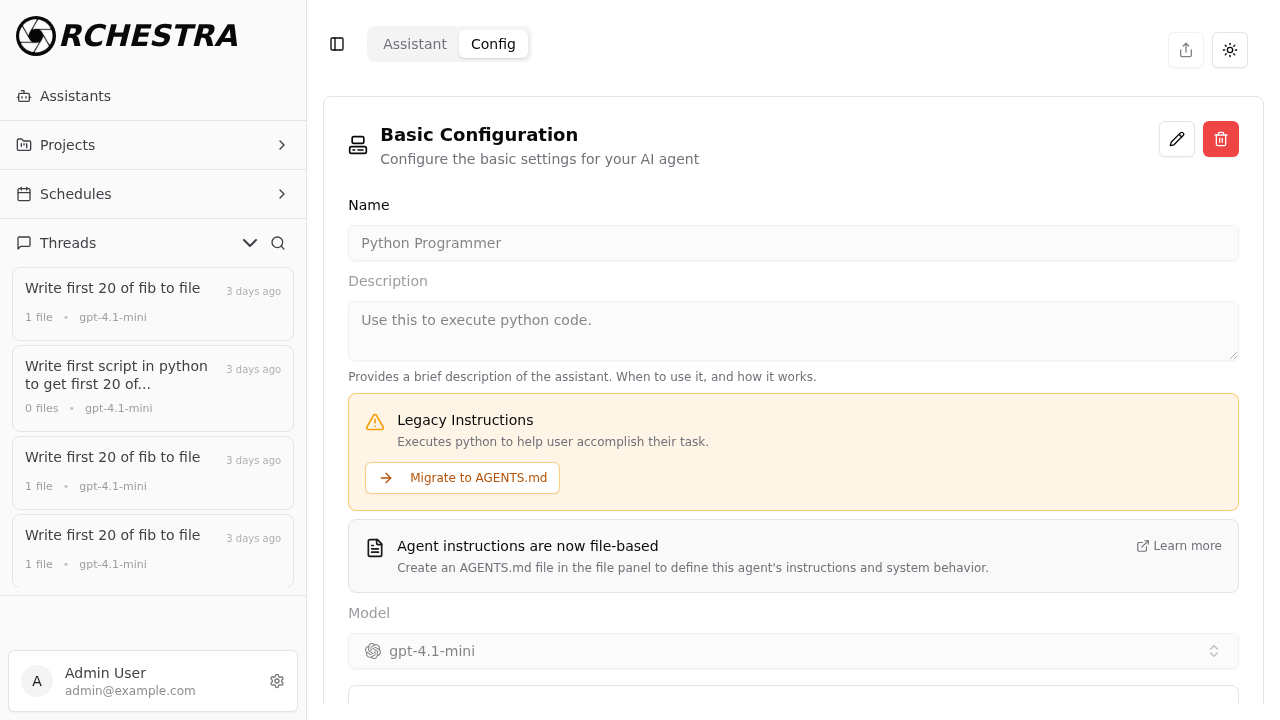
To migrate:
- Open the assistant and switch to the Config tab
- Click Edit to enable editing mode
- Click Migrate to AGENTS.md — this creates an
AGENTS.mdfile with your existing instructions - Review and edit the newly created file if needed
- Click Save
After migration, the AGENTS.md file takes priority. Your assistant continues to work exactly as before.
Existing assistants with legacy instructions continue to work unchanged. Migration is optional — AGENTS.md only takes effect when the file is present.
Using AGENTS.md in Thread Mode
You can also use AGENTS.md without a dedicated assistant. In the default chat (no assistant selected):
- Click Manage Files in the chat input area
- Create an
AGENTS.mdfile in the file panel - Write your instructions
- The content is injected as instructions for that conversation
This is useful for one-off conversations where you want specific behavior without creating a full assistant.
Best Practices
- Keep it focused — write instructions specific to the assistant's purpose
- Use Markdown structure — headings and lists help the model follow instructions
- Version control — store AGENTS.md files in Git alongside your project code
- File name must be exact — the file must be named exactly
AGENTS.md(case-sensitive)
Further Reading
- AGENTS.md Reference — full documentation including API usage, priority rules, and advanced topics
- Assistants Guide — complete assistant configuration guide
- Threads — conversation management